
Discover how to scrape website data to Excel effortlessly. Our guide covers no-code tools, Google Sheets tricks, and Python scripts for any skill level.
What if you could grab your competitor’s pricing, a fresh list of sales leads, or the latest market trends and have it all sitting in an Excel spreadsheet, ready for analysis? That’s the power you unlock when you learn how to scrape website data to Excel. This isn’t just a niche tech skill anymore—it’s a massive advantage for any business that wants to make smarter, faster decisions.
How Web Data in Excel Fuels Business Growth
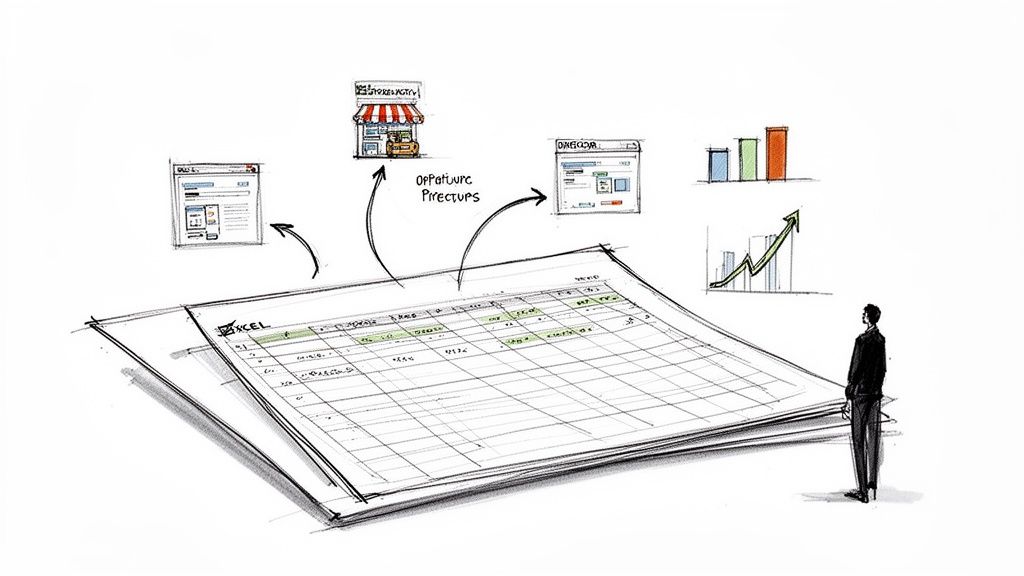
Let's be real: manually copying and pasting information from websites is slow, tedious, and prone to errors. It’s impossible to do at scale. But the data locked away on e-commerce sites, professional directories, and forums is pure gold for making informed decisions.
The problem is that web data is messy. It’s built for people to read, not for spreadsheets to understand. This guide bridges that gap, showing you practical ways to turn online chaos into the clean, organized data your business needs to thrive.
Why Scraping Data into Excel is a Game-Changer
Automating data collection gives you back hours—or even days—each week. It frees your team from mind-numbing data entry so they can focus on what really matters: analysis, strategy, and action.
Here’s what this unlocks for different teams:
For Sales: Build a laser-targeted lead list from an industry directory in minutes. Get names, titles, and company details, all ready for your CRM.
For Marketing: Monitor competitor pricing in real-time, track customer reviews, or see who’s mentioning your brand online without lifting a finger.
For E-commerce: Pull product specs, SKUs, and stock levels from supplier sites automatically to keep your own catalog perfectly updated.
Scraping to Excel turns the entire web into your personal, always-on database. You can spot trends before anyone else and build a serious competitive advantage based on real-world data.
From Raw Data to Real Insights
Getting the data is just the first step. The next is to get it into a format you can actually use. Most scraping tools export data as a CSV (Comma-Separated Values) file—a simple, universal format.
After you’ve scraped the data you need, the final step is to clean it up for analysis. Using a good CSV to Excel converter can be a lifesaver here. This simple action ensures your data is perfectly structured for sorting, filtering, and creating insightful charts in Excel.
The Fastest Way to Scrape Data with a Browser Extension
Let's cut to the chase. When you need to pull data from a website into Excel right now, a no-code browser extension is your best friend. Forget wrestling with complex setups or writing code.
This is the one-click solution that transforms hours of copy-pasting into a job you can finish in seconds.
This approach is perfect for anyone who just needs the data without the technical drama. Think sales reps building lead lists, marketers tracking competitor prices, or researchers gathering sources. The magic is in its speed and simplicity. You see the data, you click a button, and you get a clean Excel file.
Your First Scraping Project in 3 Simple Steps
Let's walk through a common use case: building a targeted lead list from an online business directory. Instead of manually highlighting names and titles, a browser extension does the heavy lifting for you.
Here’s how easy it is:
Install the Extension: Go to the Chrome Web Store, find a tool like Clura, and add it to your browser. This takes about ten seconds.
Navigate and Activate: Go to the webpage you want to scrape, like a directory of local businesses. Click the extension's icon in your browser toolbar to get started.
Select and Export: The tool instantly detects all the structured data on the page. Just click the fields you want—like names, job titles, and companies—and hit "Export."
That's it. You're done. Here’s what it looks like in action. The AI-powered extension identifies and prepares the data for you automatically.
With a single command, the tool is ready to grab all the data fields you need. No code, no manual selection, no hassle.
Why This Method Is So Powerful
The rise of no-code tools is a direct response to the massive demand for accessible data. The web scraping market is projected to soar from $0.99 billion in 2025 to $2.28 billion by 2030, according to EIN News. This growth is all about putting real-time intelligence into everyone's hands.
The real power of a browser extension isn't just that it's easy—it's that it changes your mindset about data. Tasks that once seemed too time-consuming are now instant, opening up a world of new opportunities for research and outreach.
With this method, you can go from idea to action in minutes. A sales pro can build a fresh prospect list over morning coffee and start making calls before lunch. For a deeper dive, check out our post on using a Chrome extension data scraper.
Suddenly, your focus shifts from the tedious work of gathering data to the high-value work of using it.
Choosing Your Best Method for Web Scraping
So, you need to pull data from a website into Excel. The big question is: which tool should you use? The right choice depends entirely on what you're trying to accomplish.
Think of it like choosing a vehicle. You wouldn't take a semi-truck to the corner store, and you wouldn't move your house with a bicycle. The key is matching the tool to the job.
Let's break down the three most popular ways to get this done: a super-fast no-code browser extension, a clever trick using Google Sheets, and the powerhouse option of a custom Python script.
Matching the Tool to the Task
A no-code browser extension is all about speed and simplicity. It's your go-to for quick, one-off jobs. Need to grab a list of conference attendees or product prices from a competitor? This is your tool. No code required—just point, click, and the data is yours.
The Google Sheets IMPORTXML function is a fantastic middle ground. It’s perfect for pulling nicely structured information, like a data table from Wikipedia, directly into a spreadsheet without installing anything. It requires a tiny bit of learning (the basics of XPath), but it's incredibly handy for simple data pulls.
For the ultimate power and flexibility, nothing beats writing a Python script. This is the professional-grade solution for large-scale, recurring, or tricky scraping projects. If you need to monitor hundreds of pages daily or extract data from a site with a messy layout, code is the way to go.
Here’s a quick flowchart to help guide your decision.
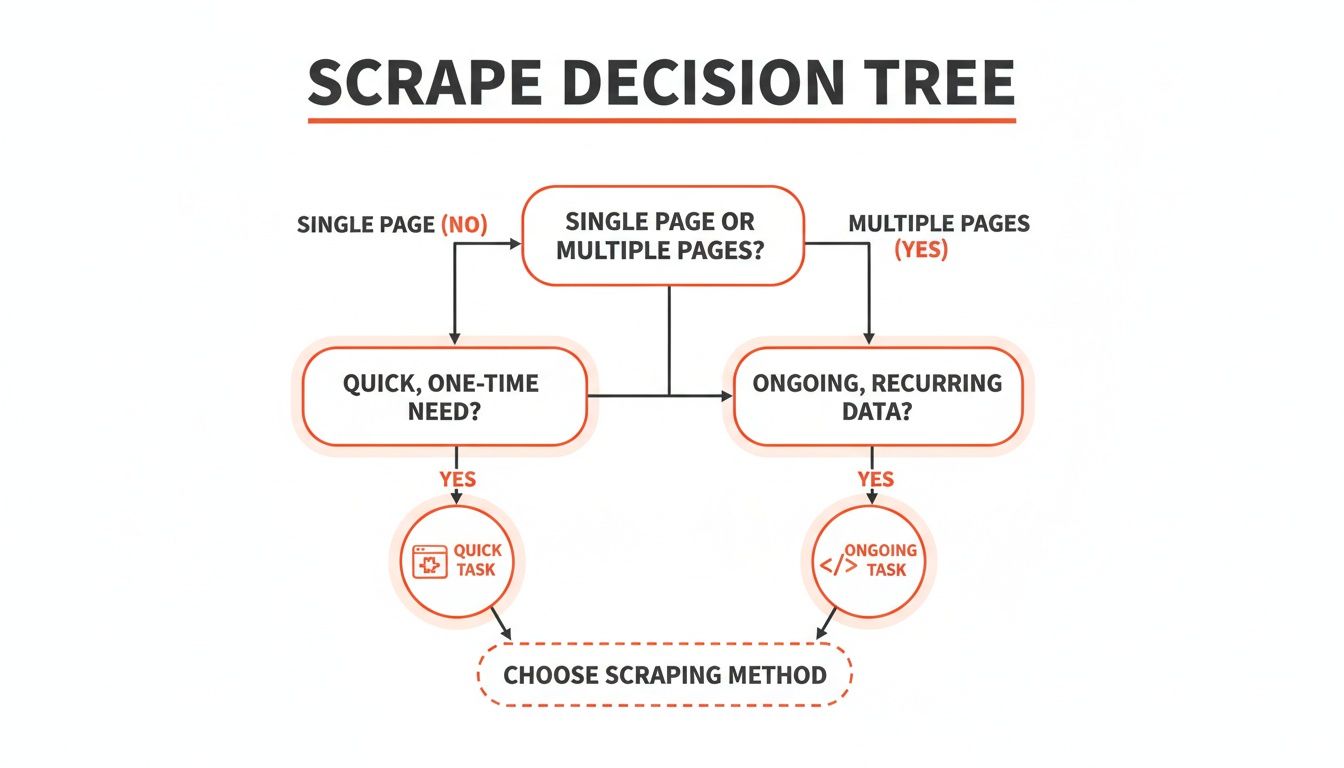
The takeaway is simple: for immediate, one-off data needs, a browser extension is your fastest path. For anything ongoing, complex, or massive, lean towards a custom script.
A Quick Comparison
To make the choice even clearer, here’s a simple comparison table.
Comparison of Web Scraping Methods
Method | Best For | Ease of Use | Scalability | Flexibility |
|---|---|---|---|---|
No-Code Extension | Quick, one-off tasks & simple sites | Very Easy | Low to Medium | Limited |
Google Sheets | Simple, structured data tables | Easy | Low | Low |
Python Script | Complex, recurring, large-scale jobs | Difficult | High | Very High |
It's all about balancing power with ease. While a Python script offers unlimited potential, it comes with a significant learning curve.
From what we've seen, a good no-code extension handles about 80% of the everyday scraping tasks most business professionals need. It's the perfect sweet spot: powerful enough to get the job done without requiring you to become a programmer overnight.
A Clever Trick Using Google Sheets and IMPORTXML
What if you could scrape data using a tool you probably use every day? One of the best-kept secrets for quick data grabs is hiding inside Google Sheets.
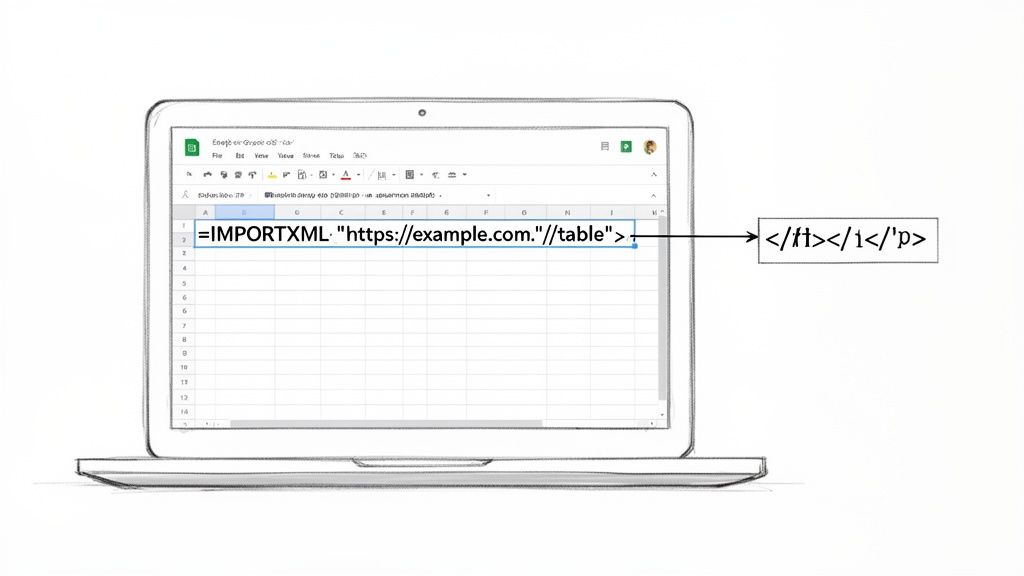
It’s all thanks to a powerful function called IMPORTXML. This gem lets you pull information directly from any website's HTML into your spreadsheet. It’s perfect for analysts and marketers who need a fast way to scrape website data to Excel (by way of Sheets, of course).
How IMPORTXML Works Its Magic
The function needs just two things: the URL of the page you want to scrape and an "XPath query." Don't let the technical term scare you! XPath is just a simple way to give directions to find things on a webpage.
Think of it like telling your spreadsheet, "Go to this web address, find the table with the financial data, and drop it right here."
For example, this simple formula is all it takes: =IMPORTXML("https://en.wikipedia.org/wiki/List_of_largest_companies_by_revenue", "//table[contains(@class,'wikitable')]")
That one line tells Google Sheets to go to Wikipedia's list of the largest companies and grab the main data table. Just like that, you have a spreadsheet filled with structured data, ready to analyze.
Finding the Right XPath
The only tricky part at first is finding the correct XPath to use. But your web browser has a built-in tool that makes this easy.
Here’s how to grab it in seconds using Chrome's Developer Tools:
Go to the webpage with the data you want.
Find the exact element you want—a table, a headline, a price—and right-click on it.
Choose "Inspect" from the menu. This opens the Developer Tools panel.
In that panel, right-click on the highlighted line of HTML code.
Navigate to Copy > Copy XPath.
That’s it! You can now paste that XPath directly into your IMPORTXML formula. It’s a simple copy-and-paste that gives you pinpoint accuracy over the data you pull.
This Google Sheets method is an incredibly efficient way to handle simple scraping tasks. It turns a static webpage into a live data source in your spreadsheet, which you can then save as an Excel file with one click.
And if you're juggling different data formats, knowing how to import a CSV file directly into Google Sheets is another fantastic skill that streamlines your entire data management process.
Diving into Python for Serious Web Scraping
When you need unmatched power and complete control, it’s time to embrace Python. Browser extensions are brilliant for quick wins, but a custom Python script is your key to conquering any scraping challenge.
This might sound like a huge leap, but it’s more achievable than you think. You don't need a computer science degree. Thanks to incredible, free libraries like Requests and BeautifulSoup, Python makes the process surprisingly logical.
Why Everyone Uses Python for Scraping
Python is the go-to language for data scraping for a reason. It's not just the language itself; it's the massive community and the amazing ecosystem of tools built around it.
Here are the libraries you'll get to know:
Requests: Think of this as your scout. The Requests library goes to a website and grabs the raw HTML code for you.
BeautifulSoup: Once Requests brings back the messy HTML, BeautifulSoup steps in to make sense of it. It transforms the code into a structured, searchable format.
Pandas: This is where the magic happens for spreadsheet lovers. After you’ve pulled your data, the Pandas library helps you clean, structure, and organize it. Then, with a single command, you can export it to a perfect Excel file.
These three tools form a powerful assembly line, taking you from a live website to a clean spreadsheet.
How AI is Changing Web Scraping
It's impossible to talk about data today without mentioning AI. The world of data extraction is evolving fast, and AI is at the heart of it. The AI-powered web scraping market is set to skyrocket from $7.79 billion in 2025 to an incredible $47.15 billion by 2035.
This isn't just a trend; it's a fundamental shift toward smarter, more automated ways of gathering data. While Python gives you the raw power, user-friendly tools are increasingly using AI to make this power accessible to everyone. You can find more insights on these market trends and see where things are headed.
Your First Simple Scraping Script
Let's make this real. Imagine you want to grab all the article headlines from a news site. The plan is simple: fetch the page, find the headlines, and save them to a file.
Here’s a basic Python script that does exactly that. I’ve added comments to explain each part.
This short script automates a task that would take ages by hand. When you run it, you'll get a headlines.csv file on your computer, ready to open in Excel. This is your starting point—from here, the possibilities are endless.
Essential Rules for Ethical Web Scraping
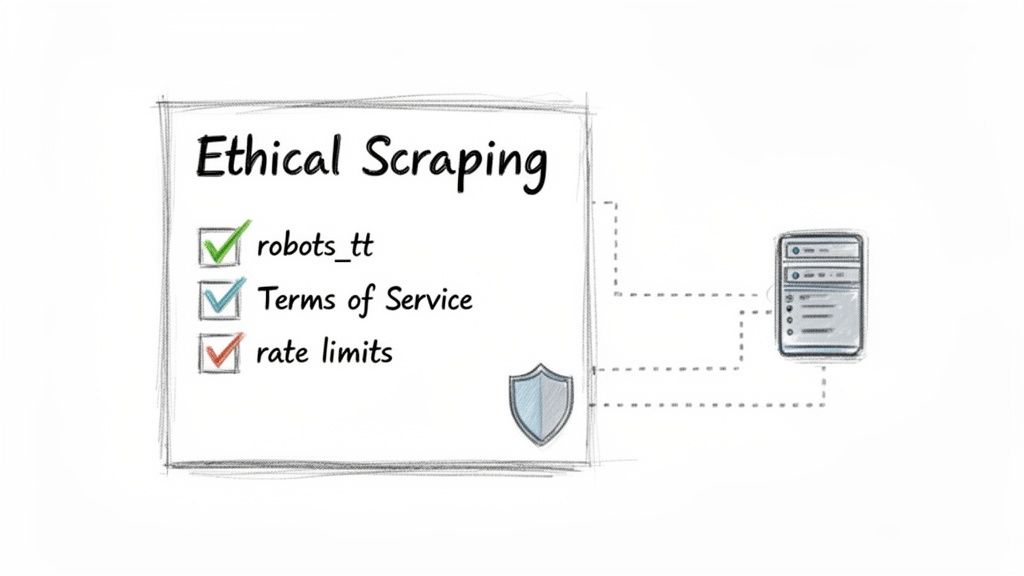
The ability to scrape website data to Excel is powerful, but with great power comes responsibility. This isn't just about being a good internet citizen; it's about making sure the web stays open and protecting yourself from potential headaches.
Think of it like being a polite guest. Smart, ethical scraping means respecting a website's resources and its rules.
Check the Website's Rules First
Before you click "scrape," you have to check the website's house rules. This is non-negotiable.
The
robots.txtFile: This is your first stop. Just typewebsite.com/robots.txtinto your browser. This simple text file tells bots which areas are off-limits. Always respect these directives.The Terms of Service (ToS): Buried in the footer, this legal document details the site's data collection policies. Ignoring the ToS is a fast way to get into trouble.
By respecting these rules, you're not just being ethical—you're being smart. It's the best way to avoid getting your IP address blocked or running into legal trouble.
The web scraping software market is exploding and projected to hit $2.7 billion by 2035. With that growth, the spotlight on compliance and responsible data gathering is only getting brighter. We've got a whole guide on the legality of web scraping that breaks it all down.
Got Questions? We've Got Answers
You've got the basics down, but web scraping can be tricky. Let's tackle some of the most common questions that pop up when you're trying to scrape website data and get it into Excel.
Is Web Scraping Legal?
This is the big one. The short answer is: it depends. Generally, scraping publicly available information is okay. Think product prices on an e-commerce site or business addresses from a directory.
However, you must play by the rules. Always check the website's Terms of Service and its robots.txt file. These tell you what the site owner allows. As a golden rule, steer clear of personal data, copyrighted material, and anything behind a login.
Why Did My Scraper Suddenly Stop Working?
Getting blocked is a classic web scraping problem. Most of the time, it's because you're sending too many requests too quickly, and the website's defenses flag you as a bot.
Websites use tricks like CAPTCHAs and IP bans to block scrapers. The fix? Slow down! Limiting your request rate is often enough. If you're still getting blocked, using a tool with proxy rotation can help by making your requests look like they're coming from different users.
Can I Scrape Data That Requires a Login?
Technically, yes, it's possible. But should you? Almost certainly not.
Scraping data from behind a login is usually a direct violation of a site's Terms of Service. It's a massive gray area that can get your account banned or land you in legal trouble.
Our advice: don't do it. The risks aren't worth it. Stick to public data—there's plenty of valuable information out there without crossing that line.
What About Data That's Constantly Changing?
Great question. If you're tracking live sports scores, flight prices, or stock data, you need your scraper to keep up. This is where automation is key.
A custom Python script can be set to run on a schedule—every minute or every hour. If you're using a no-code tool, many browser extensions have built-in monitoring features that will automatically re-scrape a page for you whenever the data changes.
Ready to skip the headaches and turn messy web data into clean, actionable spreadsheets? Clura is an AI-powered browser extension that automates data collection in a single click.
Explore prebuilt templates and start scraping for free today at https://www.clura.ai.
