how to save an excel file as csv: A practical, step-by-step guide to clean, export-ready data.
Ever felt trapped by Excel? You've organized the perfect spreadsheet, but the moment you try moving that data to another app, everything breaks. Your slick formatting and clever formulas suddenly become a roadblock.
This is exactly why learning how to save an Excel file as a CSV (Comma-Separated Values) is a total game-changer. It's not just a file format; it's your data's passport to the rest of the digital world. Think of CSV as the universal language for data—clean, lightweight, and understood by almost every database, app, and business tool out there.

Honestly, this one simple skill can streamline your entire workflow and make you the hero of your data.
Why You Need CSV for Data Workflows
So, what's the secret? Simplicity. A standard .xlsx file is a complex container that holds formulas, charts, pivot tables, and multiple sheets. A CSV, on the other hand, is pure, unadulterated text. And that's its superpower.
This raw format makes it universally readable, which is a huge win when you need to:
Bulk Upload Products: Easily push thousands of new items to your Shopify store.
Import Leads: Get a fresh list of prospects into Salesforce or HubSpot without fighting data mapping errors.
Feed a Database: Seamlessly load information into SQL databases for serious analysis.
Use Web-Scraped Data: After you scrape data from a website into Excel, converting it to CSV is the next step to make it usable.
Let's break down the key differences.
Excel (.xlsx) vs. CSV (.csv): What's the Difference?
This table highlights why you'd choose one format over the other.
Feature | Excel (.xlsx) | CSV (.csv) |
|---|---|---|
Structure | Multi-sheet workbook with complex formatting | Single plain-text file |
Data Types | Stores numbers, text, formulas, charts, images | Stores only raw text and numbers |
Compatibility | Best within the Microsoft Office ecosystem | Universally compatible with almost all applications |
File Size | Larger due to formatting and extra features | Extremely lightweight and small |
Best For | Data analysis, calculations, visualization, reports | Data transfer, importing/exporting, storage |
Essentially, you build and analyze in Excel, but you share and transfer with CSV.
The most direct way to do this is right inside Excel. When you use the 'Save As' function and choose CSV, Excel flattens the active worksheet. It strips away all the fancy stuff—colors, formulas, charts—and leaves you with just the raw data values, neatly separated by commas.
A CSV file is like a universal adapter for your data. It guarantees you can plug your information into almost any system without frustrating compatibility issues. It removes Excel’s proprietary complexity, giving you pure, actionable data to work with.
Once you get this down, you can stop fighting with import errors and start focusing on what really matters: using your data to make smarter decisions.
How to Save as CSV on Windows
If you're using Excel on a Windows machine, you're in luck. The process is built right into the "Save As" function we all know and love. It only takes a few clicks.
First, open your Excel workbook and head to the File tab in the top-left corner, then click Save As. This opens the dialog box where you can name your file and pick a destination. The real magic, though, is in the "Save as type" dropdown menu.

This is the key step where you tell Excel what kind of CSV you need. You'll probably see a few options, and picking the right one from the start will save you a world of data-related headaches.
Picking the Right CSV Format
In that dropdown list, you'll spot two key options: "CSV (Comma delimited)" and "CSV UTF-8 (Comma delimited)." They might look almost identical, but the difference is huge, especially if your spreadsheet has anything more than simple text and numbers.
CSV (Comma delimited): This is the classic format. It's fine for basic alphanumeric data, but it often trips up on special characters. If you have accented letters, currency symbols, or emojis, they can get mangled into weird symbols like "�".
CSV UTF-8 (Comma delimited): This is the one you should almost always use. UTF-8 is the modern standard for encoding characters, and it’s designed to handle any character from any language. It ensures that a name like "José" or a symbol like "€" transfers perfectly.
Think of UTF-8 as the universal language for your data. It’s the best way to guarantee that what you see in Excel is exactly what the next application sees, avoiding messy and unprofessional-looking import errors.
My advice? When in doubt, always go with CSV UTF-8. It's the safest bet for maximum compatibility. Once you’ve selected it, just hit Save, and Excel will instantly convert your active worksheet into a ready-to-use CSV file.
How to Save Excel Files as CSV on a Mac
Mac users, this one's for you! Saving an Excel file as a CSV on a Mac is just as easy as on Windows, though the interface has its own unique style. Let's walk through it.
Your first move is to head up to the top menu bar and click File, then Save As. This opens the familiar dialog box where you can name your file and choose a location. The important part is the File Format dropdown menu.
This is where you'll transform your spreadsheet into a simple, universally compatible CSV.
Choosing the Best Mac CSV Format
When you open the File Format menu, you'll see a few different CSV options. Picking the right one is crucial for making sure other programs can read your data correctly.
Here’s a quick rundown of your choices:
CSV UTF-8 (Comma delimited) (.csv): Make this your go-to. UTF-8 is the modern standard that works with every character imaginable—from accented letters (é, ñ) to currency symbols (€, £) and even emojis.
CSV (Comma delimited) (.csv): This is the older, more basic version. It’s fine for simple English text and numbers but will likely corrupt any special characters.
Windows Comma Separated (.csv): Only use this if you know the file is going to an ancient Windows machine that might struggle with standard Mac encoding. It's a rare use case.
MS-DOS Comma Separated (.csv): This is a relic. You'll probably never need this unless you're working with a system from the 90s.
Our advice? Always pick CSV UTF-8. It’s the safest, most reliable option for ensuring your data looks the same on a Mac, a PC, or any other system. No weird symbols, no corrupted data.
Once you've selected your format, hit Save. Excel will show a warning that only the active sheet will be saved and your formulas will be converted to plain values. Don't worry, this is exactly what should happen. Just click OK, and you’ve got a clean CSV file ready to go.
How to Export CSV Files from Cloud Spreadsheets
Most of our work lives in the cloud these days, which is great for accessibility. Converting a spreadsheet to a CSV is just as straightforward in browser-based tools like Excel Online and Google Sheets as it is on the desktop.
This is a game-changer for team projects. Everyone can access the same file, make updates, and then export the latest version without sending a single email attachment. If your team already uses cloud-hosted Microsoft Office environments, you know how smooth this can be.
Exporting a CSV from Excel Online
Working in Excel Online? The process is a bit different than the desktop version but still super simple. Instead of "saving as," you'll be "downloading."
Here's the quick rundown:
Click on File in the top-left corner.
Hover over Save As.
Select Download a Copy.
This downloads the file as a standard .xlsx to your computer. Just open that file in your desktop version of Excel and use the standard "Save As" method to get your CSV. It's a quick two-step process that connects the cloud to your local machine.
The Fast Way with Google Sheets
Google Sheets makes this even more direct. If your team lives in Google Workspace, you can export a clean CSV in seconds.
From your open Google Sheet:
Go to File > Download.
Choose Comma-separated values (.csv).
That’s it! Your browser will immediately download the active sheet as a perfectly formatted CSV file, ready to be uploaded straight into your database or CRM.
What we love about cloud-based conversion is the simplicity and access. You can pull the data you need for a critical project whether you’re at your desk, at a coffee shop, or even on a tablet.
This is especially handy for teams constantly pulling in new information. Think about sales teams using the best data extraction software to gather leads—this cloud-first approach keeps everyone on the same page with the most current data.
How to Solve Common CSV Conversion Problems
Let's be real—sometimes, saving an Excel file as a CSV doesn't go as planned. If you've ever ended up with a jumbled mess, this troubleshooting guide is for you.
We're going to tackle these frustrating issues head-on, from Excel saving only one worksheet to those mysterious disappearing leading zeros. You'll learn exactly why your formulas vanish and what to do when your file uses semicolons instead of commas.
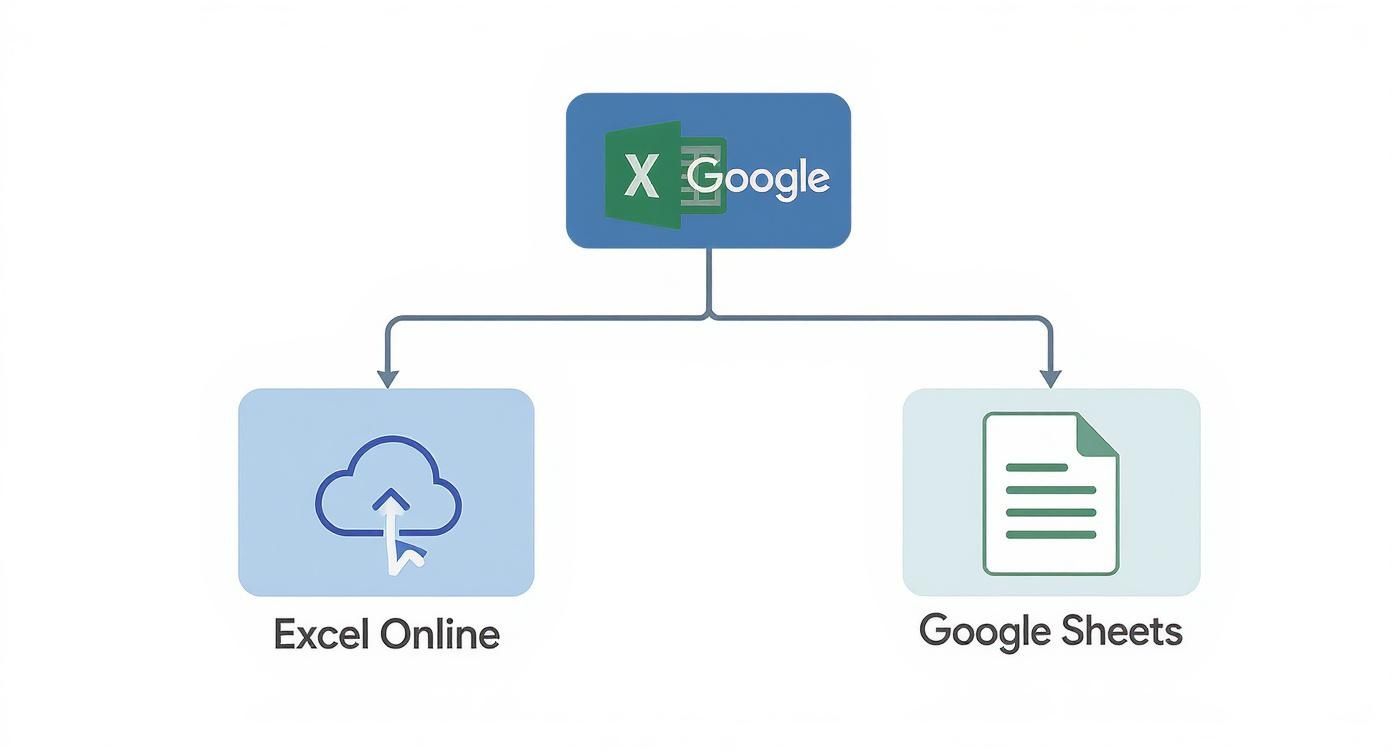
Both Excel Online and Google Sheets give you a direct route to download a CSV, which is fantastic for keeping your data accessible no matter where you are.
Why Did My Formulas Disappear?
One of the first things you'll notice after saving as a CSV is that all your formulas—like =SUM(A1:A10)—are gone. In their place, you’ll just see the final calculated values. This isn’t a bug; it's how CSVs are designed to work.
CSVs are simple, plain-text files. Their job is to store raw data values, not the complex functions behind them. This simplicity is what makes them so universally compatible.
Pro Tip: Always keep a master copy of your spreadsheet saved in the standard .xlsx format. This preserves all your formulas and formatting. Think of the CSV as an export for sharing, not your main working file.
How to Fix Missing Leading Zeros
Have you ever saved a list of ZIP codes and found that "07030" became "7030"? This is a common and annoying problem. Excel sees what looks like a number and helpfully strips away the "unnecessary" leading zero.
Here’s the quick fix:
Before you save, select the entire column with ZIP codes, phone numbers, or any IDs that start with zero.
Right-click the selection and choose Format Cells.
In the pop-up window, go to the Number tab and select Text. Click OK.
By forcing the column's format to Text before you save, you tell Excel to treat those numbers like words and preserve every character—leading zeros and all.
Data integrity is vital. For instance, when you learn https://www.clura.ai/blog/how-to-scrape-the-web for contact info, keeping that data clean is non-negotiable. And while converting to CSV is key for data portability, dedicated lead management software can help you sidestep many of these manual data-sorting headaches.
Quick Fixes for Common CSV Export Issues
Dealing with CSV export errors can be a pain, especially on a deadline. Use this quick reference table to diagnose and solve the most frequent issues without guesswork.
Problem | Cause | Solution |
|---|---|---|
Only One Worksheet Saved | CSV format limitation. It can't handle multiple sheets in a single file. | Save each worksheet as its own separate CSV file. |
Leading Zeros Vanished | Excel's default number formatting automatically removes them. | Before saving, format the column as Text in the "Format Cells" menu. |
Formulas Replaced with Values | CSVs are plain-text and only store raw data, not functions. | This is expected behavior. Keep a master .xlsx file to preserve formulas. |
Semicolons Used as Delimiters | Your computer's regional settings use a comma as the decimal separator. | Change your system's list separator to a comma, or use a text editor to find and replace all semicolons with commas. |
Hopefully, this cheat sheet saves you some frustration next time a CSV export doesn't go as planned.
Your Top CSV Questions, Answered
Let's tackle some of the most common questions people have when saving Excel files as CSV. Here are the straight-up answers to get you over those final hurdles.
Why Can't I Save All My Sheets into a Single CSV?
This is the number one "gotcha" that trips everyone up. You have a workbook with three organized tabs—like "Leads," "Contacts," and "Accounts"—but when you save it as a CSV, you only get the one active sheet.
It all comes down to what a CSV file is: a simple, flat text file. It's just a single grid of data. Unlike an .xlsx file, it has no concept of tabs, multiple sheets, or formulas. That simplicity is what makes it so compatible, but it's also its biggest limitation.
The golden rule for CSVs is simple: one sheet, one file. If you need to export an entire workbook, you’ll have to save each sheet individually as its own separate CSV file.
How Do I Save Special Characters Correctly?
Ever seen a name like "Renée" turn into "Ren?e"? This is a classic encoding problem, and the fix is easy.
When you go to save your file, always choose CSV UTF-8 from the dropdown menu. UTF-8 is the modern, universal standard that knows how to handle almost any character you throw at it, from accents and emojis to symbols from different languages. The older "CSV (Comma delimited)" option just can't keep up.
What's the Deal with 'CSV (MS-DOS)' Anyway?
While scrolling through the 'Save as type' list, you might spot "CSV (MS-DOS)" and wonder what it is. Honestly, think of it as a fossil.
This is an ancient format left over from the early days of computing. It has severe limitations and is only there for backward compatibility with very old systems. Unless a legacy machine specifically demands it, you should never use this option. Sticking with CSV UTF-8 is the only way to go for any modern use case.
Tired of manually exporting files every time you need fresh data? With Clura, you can scrape clean, structured data from any website and get it delivered as a perfectly formatted CSV, automatically. Check out the prebuilt templates and see how much time you can save.
