Learn how to scrape data from website into excel with this easy guide. Explore simple tools and practical methods for automated data collection.
Tired of the soul-crushing routine of copying and pasting data from websites into Excel? Let's face it: it's a monumental waste of time, riddled with errors, and a surefire way to kill productivity. You've got more important things to do, and your work deserves better data.
This guide is your official breakup letter to manual data entry. We'll explore a few game-changing methods that replace mind-numbing copy-pasting with smart automation, saving you countless hours and delivering data you can actually trust.
The Real Cost of Copy-Pasting
Imagine a marketing analyst tasked with tracking competitor prices across ten different e-commerce sites. After spending the entire day painstakingly highlighting, copying, and pasting, they finally finish. But wait—a single misplaced decimal point has skewed the weekly report, leading to flawed strategic decisions.
Sound familiar? This isn't just a hypothetical nightmare; it's the daily reality for millions.
Why This Old-School Method Is Broken
Let's be blunt: manual data entry is a fundamentally flawed process.
It’s a Time Vampire: Collecting data from just a hundred product pages can easily eat up your entire day. An automated scraper can knock that out in minutes while you're grabbing coffee.
It’s an Error Magnet: We're all human. Typos, missed rows, and formatting glitches are bound to happen. In fact, studies show that nearly 90% of all spreadsheets contain errors, with many tracing back to manual input.
It Just Doesn’t Scale: What happens when you need to track 50 competitors instead of five? Or monitor prices every hour? Manual workflows simply can't keep up. They buckle under pressure.
This guide is your escape route. Learning to scrape data from a website directly into Excel isn't just about speed—it’s about unlocking cleaner data, generating faster insights, and gaining a massive competitive edge. It’s time to swap tedious labor for intelligent automation.
If you're ready to go all-in on efficiency, you can learn more about how to automate data extraction and win back your most valuable asset: your time. By adopting modern tools, you can finally shift your focus from collecting information to analyzing it to drive real growth. Let's get started.
Choosing Your Web Scraping Toolkit
Alright, let's get into the fun part. Before you start pulling data, you need to pick your weapon of choice. The best way to scrape data from a website into Excel really boils down to two things: how complicated the website is and how comfortable you are with a bit of tech. Don't sweat it—there’s a perfect tool for you, whether you’re a coding wizard or just starting out.
If you need data, like, yesterday, and don't want to mess with code, a slick AI-powered browser extension is your best friend. For simple, old-school websites with clean tables, Excel’s own Power Query can do the job. But if you’re up against a modern website that loads content as you scroll, you’ll want the flexibility of a programming language like Python.
Finding Your Perfect Fit
The secret to successful scraping is matching the tool to the task at hand. Are you just grabbing a static price list from a single page? Or are you trying to pull thousands of product reviews that only appear when you click "load more"? Your answer points you to the right tool. For a deeper look at the options, we've put together a comprehensive guide on the best website data extraction tools out there.
This whole manual vs. automated debate really comes down to time, scale, and accuracy. This chart breaks it down perfectly.
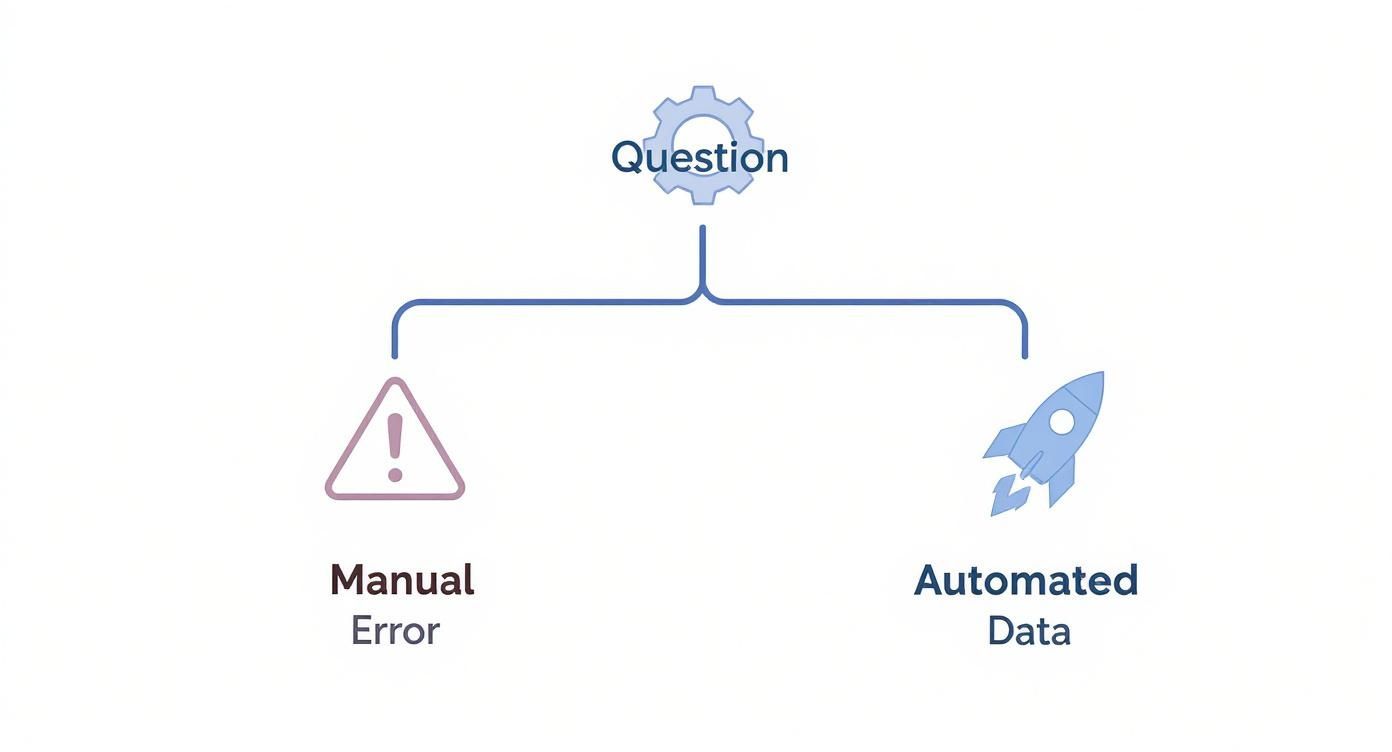
As you can see, copying and pasting might work for a tiny, one-time task, but the moment you need to do it again or handle more than a handful of pages, automation is the only way to go.
Your toolkit should empower you, not overwhelm you. The goal is to get the data you need without the headache, turning a complex process into a simple, repeatable workflow.
Making the right choice now saves you a world of frustration later.
Which Web Scraping Method Is Right for You?
Still on the fence? I get it. This table is a quick cheat sheet to help you decide which path to take based on what you’re trying to accomplish.
Method | Best For | Technical Skill Required | Handles Dynamic Content? |
|---|---|---|---|
Clura (Chrome Extension) | Quick, one-click scraping of single or multiple pages without code. Great for beginners. | None | Yes |
Excel Power Query | Pulling clean, simple tables from static websites directly into Excel. | Basic Excel knowledge | No |
Google Sheets (IMPORTXML) | Lightweight scraping of specific data points from static sites. Good for quick lookups. | Basic (XPath/CSS Selectors) | No |
Python (Requests/BeautifulSoup) | Large-scale or complex scraping from static websites. Full customization. | Intermediate to Advanced | No |
Python (Selenium) | Scraping complex, dynamic websites that require user interaction (clicks, scrolls). | Advanced | Yes |
Ultimately, the "best" method is the one that gets you the data you need efficiently. Whether you're a complete beginner or a seasoned pro, there's an approach here that will completely change how you gather information from the web. Let's dive into these methods one by one.
Method 1: Scrape Any Website with Just One Click
Picture this: you need a full list of every product your top competitor sells—prices, ratings, the works. The old way meant hours of mind-numbing copy-pasting. The new way? Getting all of that data into a pristine Excel sheet in about 30 seconds.
This isn't some futuristic fantasy. It's what modern, AI-powered browser extensions deliver right now. These tools are the ultimate shortcut to scrape data from a website into Excel, completely sidestepping the manual grind. They’re built for speed and simplicity, making them a game-changer for sales teams building lead lists, marketers running competitive analysis, or e-commerce pros keeping an eye on the market.
How AI Browser Scrapers Do Their Magic
Forget wrestling with code or clunky software. A browser extension like Clura overlays a simple interface right on top of the website you’re looking at. You just browse to a page, click the extension's icon, and let the AI handle the rest.
It’s smart enough to scan the page's underlying structure and instantly spot repeatable data patterns—think product listings, contact directories, or real estate properties. With a single click, it grabs everything you need.
Here’s a peek at the Clura extension doing its thing on a typical e-commerce site.

See how it automatically recognizes and maps the key info into clean columns? It's all ready to go. This visual, point-and-click approach means you know exactly what data you're getting before you even hit download.
Your Step-By-Step Guide to One-Click Scraping
Ready to try it? The whole process is ridiculously easy and takes less than a minute.
Install the Extension: First, grab a tool like Clura from the Chrome Web Store. The setup is instant, with no fiddly configuration required.
Head to Your Target Site: Navigate to any website with the data you're after. This could be a B2B directory for new leads, a job board for recruiting, or a product category page on Amazon.
Fire Up the Scraper: Click the extension’s icon in your browser toolbar. The AI will immediately analyze the page and show you a preview of the structured data it found.
Download Your Data: Once you're happy with what you see, just click the "Download" button. You can export it as a CSV or Excel (.xlsx) file, ready for you to slice and dice.
And that's literally it! What used to be an afternoon of tedious work is now a task you can knock out while your coffee is still hot. For a deeper dive, our guide on the best data scraping Chrome extensions breaks down even more ways these tools can completely overhaul your workflow.
The real power here is accessibility. You don’t need to know a lick of HTML or write a single line of code. You just point, click, and collect. It makes web scraping a practical, everyday tool for anyone on your team.
Method 2: Use Excel Power Query for Direct Data Imports
What if I told you one of the best tools to scrape data from a website into Excel is already hiding inside the program you use every day? It's true. Meet Power Query, Excel's secret weapon for pulling structured data right off the web.
You don't need any third-party tools or a single line of code.

This awesome feature, often labeled "Get & Transform Data," is a total game-changer. It’s perfect for grabbing clean, table-based info from static websites. Think financial data from Yahoo Finance, sports stats, or simple product catalogs. If the data lives in a clean HTML table, Power Query can snatch it, turning a copy-paste marathon into an automated, refreshable data pipeline.
How to Get It Done with Power Query
The process is more straightforward than you might think. You're basically just telling Excel, "Hey, go look at this page," and it does the hard work of finding and importing any structured tables it sees.
Let's walk through the steps.
Fire up a new Excel workbook and head to the Data tab in the ribbon.
On the left, find the section called "Get & Transform Data" and click the From Web button. A dialog box will pop up asking for the URL. (In older Excel versions, you might find this under Get Data > From Other Sources > From Web).
Paste the full URL of the webpage you want to scrape into the box and click OK. Excel will connect to the site and analyze its contents.
The Navigator window will appear, showing a list of all the tables Power Query found. Click on each one to preview the data.
Once you’ve found your table, you have a choice. Clicking Load immediately drops the raw data into a new worksheet. But the real magic happens when you click Transform Data, which opens the incredible Power Query Editor.
Cleaning Your Data Before It Hits the Sheet
This is where you can make your data spotless before it even touches your spreadsheet. Taking a minute here saves a ton of headaches later.
Inside the Power Query Editor, you can perform all sorts of data-cleaning magic with just a few clicks:
Ditch Useless Columns: Don't need it? Just right-click the column header and select "Remove."
Filter Out Rows: Use the filter arrows in the column headers to get rid of rows you don’t need, just like in a normal Excel table.
Fix Data Types: Make sure your numbers are actually numbers and your dates are dates. This is critical for any analysis later on.
When your data looks perfect, click "Close & Load" in the top-left corner. Power Query will run all your cleaning steps and drop a beautifully formatted table right into your Excel sheet.
The best part? Any time you want the latest data, just right-click the table and hit "Refresh." It automatically pulls in the new info, clean and ready to go.
Method 3: Advanced Scraping with Python for Full Control
So, no-code tools and built-in features are great, but what happens when you hit a wall? You might run into a super-dynamic, JavaScript-heavy website or a project that demands a completely custom solution.
When you get to that point, it’s time to bring out the big guns: Python. For those who need absolute precision and limitless flexibility, this is the way to scrape data from a website into excel.
It's more approachable than you'd imagine. With a few powerhouse libraries, you can build a scraper that handles dynamic content, breezes through pagination, and structures data exactly the way you want. It’s the ultimate playground for developers and technical folks who refuse to be told "no."
Meet the Python Scraping Power Trio
Getting started is as simple as installing three incredible, open-source libraries. Each one has a specific job, and together, they’re unstoppable.
Requests: This is your entry point. The Requests library shoots a request to a website's server and grabs the raw HTML content, just like a web browser.
BeautifulSoup: Once you have that blob of HTML, Beautiful Soup comes in to work its magic. It parses that messy code into a beautiful, navigable structure you can easily follow.
Pandas: After you’ve pulled out all the juicy data points, Pandas is the final piece of the puzzle. This library wrangles your scraped info into a structured DataFrame (basically a spreadsheet in code) and then exports it to a perfect CSV or Excel file.
A Quick Real-World Scenario
Let's say you want to pull all the product names and prices from an e-commerce category page. A simple Python script would first use requests to grab the page’s HTML.
Next, you'd hand that HTML to BeautifulSoup and instruct it to find every element with specific CSS classes, like .product-title and .product-price. The script would then loop through each product, extract the text, and save them.
Finally, you’d use pandas to create a two-column table (Name, Price) and save it as products.csv. That file opens perfectly in Excel, giving you a pristine dataset ready for anything.
This approach gives you total control. You can program your script to click the "Next" button, add polite delays to respect server rate limits, or even use a more advanced library like Selenium to interact with login forms and dropdown menus.
This isn't just a niche skill anymore. The global web scraping market is projected to nearly double from $1.03 billion to $2 billion by 2030. And what's driving it? Python-based tools, which are the top choice for nearly 70% of developers.
Businesses are using this data for everything from competitive intelligence to training AI models. You can dive deeper into these web crawling industry benchmarks to see why mastering this is more valuable than ever.
The Golden Rules of Ethical Web Scraping
Web scraping is an incredible superpower, but with great power comes the responsibility to be a good digital citizen. When you scrape data from a website into Excel, you’re interacting with someone else’s server. Following a few golden rules ensures you get what you need without causing headaches for website owners.
Think of it like being a polite guest at a party. You wouldn't just show up and start rearranging the furniture, right? The same principle applies online.
First Things First: Check the robots.txt File
Before you write a single line of code or click a button, your first stop should always be the website’s robots.txt file. You can usually find this by adding /robots.txt to the end of the main domain (like example.com/robots.txt).
This simple text file is the site owner's way of laying down the ground rules—which pages are okay for bots to visit and which are off-limits. Respecting these directives is the absolute baseline for ethical scraping.
Don't Be a Server Hog: Pace Yourself
Another crucial practice is rate limiting. This is a fancy way of saying "don't send too many requests too fast." Firing off hundreds of requests in a few seconds can overwhelm a website's server, slowing it down for everyone else or even causing it to crash. That’s the fastest way to get your IP address blocked.
A polite scraper always adds a short, reasonable delay between requests, mimicking how a human would browse the site.
The Legal Lowdown
Heads up: the legal and ethical goalposts are always moving. It’s predicted that by 2025, bots will account for nearly half of all internet traffic (49.6%), which has put a massive spotlight on data governance.
This isn't just theory. Regulations like GDPR have pushed 86% of organizations to seriously up their data governance budgets to stay compliant. You can explore the latest web scraping statistics and trends to see how the industry is evolving.
Key takeaway: Always read a site’s Terms of Service and Privacy Policy. These documents spell out the legal rules for using their content. Scraping publicly available, non-personal data is generally fine, but collecting sensitive user information is a serious no-go. Ethical scraping is just smart scraping.
You've Got Questions, We've Got Answers
Still have a few things you're wondering about? Perfect. Let's tackle some of the most common questions head-on.
Is It Actually Legal to Scrape Data from a Website?
This is the big one, right? Generally speaking, scraping data that's publicly available is okay, but it’s not a free-for-all. You have to respect a website's Terms of Service and its robots.txt file, which tells bots what they are and aren't allowed to access.
Scraping personal information is a massive no-go and is tightly controlled by data privacy laws like GDPR. The golden rule is simple: scrape responsibly and always put ethics first.
Think of yourself as a polite guest. Only take what you need, don't hammer the website's servers with too many requests at once, and steer clear of private data.
What's the Absolute Easiest Way to Get Data into Excel?
For anyone who isn't a coder, the simplest route by far is using a no-code AI browser extension. These tools are fantastic—they let you just click on the data you want, right there on the webpage.
From there, you can export it all into a clean Excel or CSV file in seconds. It's the perfect starting point for beginners because there’s zero programming or complicated setup involved.
How Do I Scrape a Site That Needs a Login?
Ah, scraping data from behind a login wall. This is a bit more advanced and requires a tool that knows how to handle authentication. Your standard Excel Web Query just isn't going to cut it here.
This is where more powerful solutions come into play. You can use something like Python with a library like Selenium, which can automate the whole login process by acting like a real person typing and clicking. This lets your scraper get past the login screen and pull data from pages that are normally protected.
Ready to stop copying and pasting forever? Clura is the one-click AI agent that makes web scraping a breeze. Explore prebuilt templates and start pulling clean data into Excel in seconds. Give it a try for free at https://www.clura.ai.
