
Unlock your data's potential with this guide on converting HTML to Excel. Explore methods from simple copy-paste to advanced automation tools for any use case.

Tired of endless copy-pasting from websites into spreadsheets? Turning messy web pages into clean, organized Excel files is a game-changer for anyone working with data. It’s all about extracting structured information—like product lists, contact details, or financial tables—from a website’s HTML and putting it into a format you can actually use.
This guide will show you how to transform static web data into a powerful asset you can sort, analyze, and act on.
Why Converting HTML to Excel Is a Modern Data Superpower
Manually moving data from a website to a spreadsheet is more than just tedious—it’s slow, error-prone, and a massive waste of time. If you’ve ever tried to track competitor prices or build a sales list by hand, you know the pain. It's a recipe for burnout.
Automating this process is a strategic move that unlocks smarter ways of working. When you automate converting HTML to Excel, you free yourself from repetitive tasks to focus on what truly matters: spotting trends, making data-driven decisions, and gaining a competitive edge. You turn a static webpage into a dynamic dataset that fuels your success.
Unlock Actionable Business Insights
Pulling web data directly into Excel creates incredible opportunities for any team. It’s about giving yourself a genuine advantage in the market.
Suddenly, your team can:
Sales Teams: Automatically build targeted prospect lists from online directories in minutes, not days.
E-commerce Brands: Monitor competitor pricing, stock levels, and product details across dozens of sites at once to stay ahead of market shifts.
Market Researchers: Scrape customer reviews, industry reports, and news articles to spot emerging trends and understand consumer sentiment.
Recruiters: Quickly gather candidate profiles from job boards and professional networks to create a structured database for faster hiring.
From Manual Drudgery to Automated Workflows
Modern business intelligence relies on structured web data. That’s why converting HTML to Excel is a critical workflow for so many teams. Financial analysts pull market data from regulatory sites, while project managers consolidate reports from web-based dashboards—all while reducing errors and saving time. Learn more about turning data into decisions in A Guide to Business Intelligence and Reporting.
The goal is to make web data work for you, not the other way around. By automating the conversion from HTML to Excel, you create a reliable pipeline for fresh, accurate information that fuels smarter business decisions.
Making the switch to automation is a huge leap forward. Our guide on data entry automation dives deeper into how this change can transform your organization. In the next few sections, we’ll show you exactly how to do this—from simple built-in tools to powerful AI-powered automation—so you can master this essential skill.
So, Which HTML to Excel Method is Right For You?
Not all HTML-to-Excel conversion methods are created equal. The best approach depends entirely on your goal. Are you grabbing a small, clean table for a one-off report? Or are you scraping competitor pricing from 20 different websites every morning?
Choosing the right tool is the difference between a five-minute win and a five-hour headache. Let's walk through the most common techniques so you can find the perfect match for your project.
Finding Your Go-To Conversion Strategy
We can group conversion methods into a few categories, each with its own pros and cons. Some are great for quick, simple jobs, while others provide the heavy-duty power needed for large-scale, ongoing data projects. The trick is matching the tool to the task.
Here are the six main ways to get it done:
The Classic Copy-Paste: Perfect for grabbing simple, well-structured tables in a pinch.
Excel’s "Get Data From Web" Feature: A surprisingly powerful, built-in tool that lets Excel connect directly to a website.
Browser Developer Tools: The technical approach for grabbing raw HTML.
Online Converter Tools: Quick web apps for one-off conversions. Just paste a URL, and they generate a file for you.
Python with Pandas: The power user's choice for building custom, large-scale, and fully automated data pipelines.
No-Code Automation Tools: The modern solution. AI-powered browser extensions that do all the heavy lifting for you, no code required.
This simple diagram highlights the core decision: stick with slow, manual methods, or embrace fast, automated data extraction?
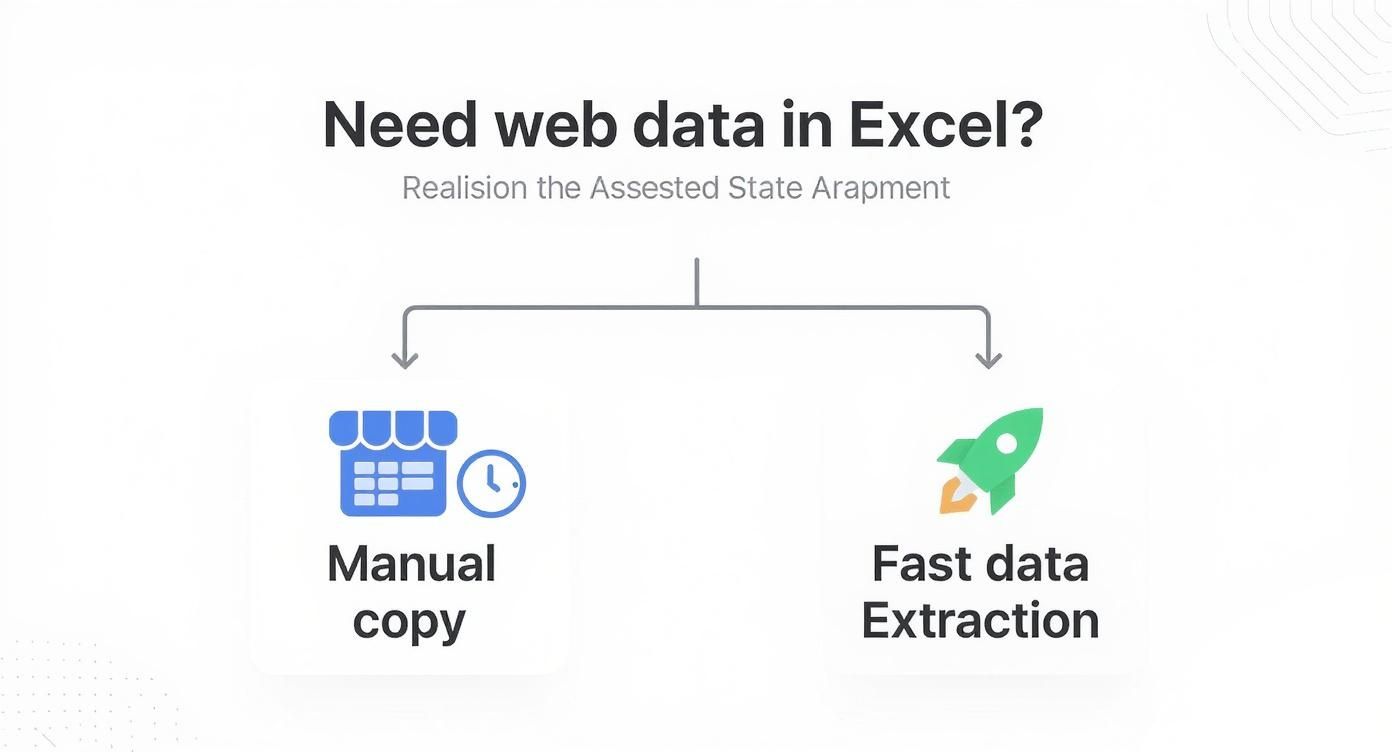
For any task you plan to repeat—or for any project involving complex websites—automation is the clear winner. It saves time and prevents costly mistakes.
HTML to Excel Conversion Methods At a Glance
To make your decision crystal clear, here’s a quick comparison table. It breaks down the six common methods, rating them on ease of use and scalability.
Think about what matters most. Do you need something that works right now with zero learning curve? Or is your priority processing thousands of records without a hiccup?
Method | Best For | Ease of Use | Scalability | Accuracy |
|---|---|---|---|---|
Manual Copy & Paste | Quick grabs of small, clean tables. | ★★★★★ (Easiest) | ★☆☆☆☆ (Awful) | ★★☆☆☆ (Error-Prone) |
Excel "From Web" | Recurring imports from static, simple URLs. | ★★★★☆ (Pretty Easy) | ★★★☆☆ (Okay) | ★★★★☆ (High) |
Browser DevTools | Tech-savvy users who need the raw HTML. | ★★☆☆☆ (Tough) | ★★☆☆☆ (Poor) | ★★★☆☆ (Needs Cleaning) |
Online Converters | One-off conversions of non-sensitive data. | ★★★★★ (Easiest) | ★☆☆☆☆ (Awful) | ★★☆☆☆ (Hit or Miss) |
Python & Pandas | Large-scale, custom, and automated jobs. | ★☆☆☆☆ (Hardest) | ★★★★★ (The Best) | ★★★★★ (Perfect) |
No-Code Automation | Recurring tasks on complex, dynamic sites. | ★★★★☆ (Pretty Easy) | ★★★★★ (The Best) | ★★★★★ (Perfect) |
The takeaway is stark. While manual copying works for a one-time task, you’ll hit a wall quickly. True efficiency and scale only come from automation.
For anyone serious about using web data to make decisions, embracing a no-code tool or a Python script isn't just an option—it's a necessity.
Modern automation platforms give you the best of both worlds: the power of a custom script with the simplicity of a point-and-click tool. If you want to level up your data game without getting bogged down in code, exploring the best data extraction software is your next step. These tools are built to handle the messy parts—like pagination and JavaScript—so you can focus on getting the data you need.
Mastering Excel's Built-in Web Import Feature
Let's start with a method you probably already have. Before you consider third-party tools or code, you need to know about Excel's secret weapon: Power Query. Its "From Web" feature is one of the most direct and powerful ways to pull HTML tables straight into a spreadsheet.
This isn’t just a copy-paste job. It’s a live connection to a webpage that grabs the exact data you need, cleans it up, and even refreshes it automatically. It's a data transformation engine hiding in plain sight. Let me show you how to turn a static webpage into a dynamic, auto-updating dataset.
Getting Started with Power Query
The magic starts in Excel's "Data" tab. Think of it as mission control for pulling in information from all sorts of places, including the web. The process is designed to be intuitive, getting you from a URL to a clean table in just a few clicks.
Here’s how it works:
Open a new Excel workbook and go to the Data tab.
In the "Get & Transform Data" section, click From Web.
A dialog box will appear. Paste the URL of the page you want to scrape and click OK.
Excel connects to the site and scans the HTML for anything that looks like a table. The "Navigator" window then pops up, showing you a list of all the tables it found.
As you click on each table in the list, you’ll get a live preview. This helps you make sure you’re grabbing the right data before importing it.
Transforming Your Data Before It Loads
This is where Power Query truly shines. Instead of dumping messy data into your worksheet, click the Transform Data button. This launches the Power Query Editor—your personal data-cleaning command center.
Inside the editor, you can easily shape your data without writing a single formula:
Remove Useless Columns: Right-click a column header and select "Remove."
Filter Out Noise: Use the filter dropdowns to remove irrelevant rows, just like in a normal Excel table.
Fix Data Types: Ensure numbers are numbers and dates are dates with a simple click on the column header icon.
Split Columns: Break a "Full Name" column into "First" and "Last" with the "Split Column" feature.
Every change you make is logged as a step, so your entire cleaning process is saved and repeatable. Once you're done, just click Close & Load.
It's no surprise that skills like this are in high demand. The global data conversion services market was valued at USD 7.67 billion in 2024 and is on track to explode to USD 14.16 billion by 2033. HTML conversion is a huge piece of that pie. This growth shows just how vital it is for businesses to turn messy web data into something they can actually use. You can dive deeper into these trends in this data conversion services report.
Pro Tips for a Flawless Import
Getting the basics down is easy, but a few expert tricks can help you handle trickier websites and get the most out of this feature.
The real power of the 'From Web' feature isn't just importing data once; it's creating a live, refreshable connection that keeps your spreadsheet perpetually up-to-date.
Here are a few things I've learned from experience:
Set It and Forget It with Automatic Refreshes: After loading your data, right-click the table, go to Table > External Data Properties, and set up a refresh schedule. You can have it update every hour, every day, or every time you open the file.
Tackle Basic Authentication: If a site is behind a simple login, Power Query can often handle it. It will prompt you for credentials, and you can choose the right authentication method.
Know Its Limits with Dynamic Pages: Power Query works best with static HTML tables. If a site uses a lot of JavaScript to load data, this method might struggle. In those cases, you’ll need a more specialized browser automation tool.
By mastering Excel's built-in tools, you unlock a powerful and efficient way to convert HTML to Excel, making it a go-to solution for countless data-gathering tasks.
Unleash the Power of Python and Pandas for Complex Conversions
What happens when simple tools don't cut it? When you're facing thousands of pages, messy HTML, or need a fully automated pipeline, it’s time to bring out the big guns: Python.
Don't let the word "code" intimidate you. Thanks to modern libraries, what used to be a complex programming task is now surprisingly accessible. This is the ultimate solution for anyone who needs complete control, flexibility, and scalability. Think of it as your personal data-extracting robot that works tirelessly for you.
The Dynamic Duo: Pandas and BeautifulSoup
To make the magic happen, we rely on two legendary Python libraries. First is Pandas, the gold standard for data manipulation. It gives us a DataFrame—think of it as an Excel spreadsheet on steroids that you can shape and clean with a few simple commands.
Next is BeautifulSoup, a brilliant tool for parsing tangled HTML. It takes raw web code and turns it into an organized structure that your script can easily navigate. It’s perfect for grabbing data from unconventional tables or even text that isn't in a table at all.
A Simple Script to Get You Started
Ready to see how this works? Here’s a simple script that shows just how powerful Pandas can be. Its read_html function is fantastic for pulling clean, well-structured tables directly from a webpage.
First, you'll need to install the necessary libraries. Open your terminal or command prompt and run: pip install pandas lxml openpyxl beautifulsoup4.
Now, here’s the code:
So what’s happening here? The line pd.read_html(url) does almost all the work. It fetches the webpage, scans for every <table> tag, and instantly converts each one into a clean DataFrame. The rest of the script just loops through the tables it found and saves each one to a different sheet in an Excel file. It’s that easy!
With just a handful of Python code, you can achieve in seconds what might take hours of tedious copy-pasting. This is the heart of programmatic data extraction—it's repeatable, scalable, and you can customize it to do almost anything.
This approach is perfect for building automated workflows. For example, you might want to isolate specific pieces of information before converting it to Excel. Learning how to build a text extractor from website content is a great next step, giving you the power to fine-tune exactly what data lands in your spreadsheet. For anyone serious about working with web data, mastering this method is a game-changer.
The Modern No-Code Approach: AI-Powered Automation
We've covered manual methods and even dipped our toes into Python. But what if you could get all the power of automation without writing a single line of code? AI-powered browser automation tools are here to make converting HTML to Excel feel less like a chore and more like magic.
Imagine seeing the data you want on a webpage—product names, prices, contact info—and just pointing and clicking. A smart tool understands the pattern and pulls it all into a perfectly structured spreadsheet for you. It's that simple.

This method is a lifesaver for sales teams building lead lists, e-commerce brands monitoring competitors, or anyone who needs web data without the technical headache. It's all about working smarter, not harder.
How Does No-Code Automation Work?
Most of these tools work as browser extensions, adding a user-friendly interface right on top of any website you visit. You visually teach the tool what to grab, and it handles the rest.
The process is incredibly intuitive:
Point and Click: Simply click on a couple of examples of the data you want, like the first two product titles on a page. The AI gets the hint and highlights all other matching items.
Create a Reusable Recipe: Your selections are saved as a repeatable workflow. You can run the same extraction process tomorrow, next week, or whenever you need fresh data with a single click.
Handle Tricky Websites with Ease: What about sites with infinite scrolling or "next page" buttons? No problem. These tools are built to handle modern web design, automatically clicking through pages and loading more content.
Get Clean Data, Instantly: Once the tool has gathered everything, you can export it directly to a clean Excel or CSV file. The columns are already named and organized based on your selections. Done.
This is a complete game-changer. If you want to see how seamlessly these tools can fit into your daily routine, check out our guide on using a data scraping Chrome extension.
Real-World Wins with Automation
The applications are practically limitless. We're not just grabbing a simple HTML table; we're building dynamic datasets from complex, interactive websites.
Imagine a sales team...
Generating Leads on Autopilot: They can navigate to a business directory, select company names and contact info, and let the tool automatically scrape every page to build a massive lead list.
Monitoring the Competition: Set up a recipe to visit competitor websites daily, scrape the latest product prices, and export it all to a dashboard for quick analysis.
Enriching Contact Lists: Take a list of LinkedIn profiles and have the tool visit each one to pull current job titles and company names to flesh out a database.
The beauty of no-code tools is that they put the power of data extraction into everyone's hands. You don't need to be a developer to build a custom scraper anymore. Anyone can set up a powerful, automated workflow in minutes.
Of course, before you can convert the data, you have to get it off the page. Understanding the basics of building a text extractor from website content provides fantastic context for how these tools isolate the information you need—except they do all that work for you automatically.
Get a Head Start with Prebuilt Templates
The best automation platforms make things even easier by offering prebuilt templates for popular sites like LinkedIn, Amazon, or Google Maps. These are turn-key recipes designed for common tasks like scraping sales leads or monitoring product prices.
You just pick a template, enter a search term, and let the tool handle the rest. It's the fastest way to get from a messy webpage to a pristine Excel file, freeing you up to analyze your data instead of just fighting to collect it.
Common Pitfalls and Pro Tips for Flawless Conversions
You’ve picked your method for pulling data from a website. Easy, right? Not always. Even with the best tools, converting HTML to a clean Excel file can be tricky. Websites are often messy, and data doesn't always cooperate.
Let’s cover the real-world headaches you're likely to face and how to solve them.
Dodging the Data Traps
One of the biggest culprits you'll encounter are tables with merged cells. They use colspan or rowspan to stretch a single cell across multiple columns or rows. They look fine on a webpage but can wreck a simple copy-paste and confuse basic scrapers, resulting in skewed columns and jumbled data.
Then there's JavaScript. Ever try to scrape a table and end up with nothing? That’s probably because the data you want is loaded after the initial HTML. A simple script that only grabs the source code will miss it completely.
Navigating the Web's Quirks
A couple of other troublemakers can turn a quick job into a long, frustrating afternoon. Here’s how to beat them.
Tackling Pagination: Data is often spread across hundreds of pages. Manually clicking "Next" and scraping each page is a recipe for disaster. The solution is automation. A Python script can be programmed to click through every page, and modern browser automation tools can handle this looping for you.
Solving Character Encoding Mysteries: Ever get an export full of weird symbols like "Â" or "�"? That’s a classic encoding mismatch. It happens when a website uses one standard (usually UTF-8) and your export process gets its wires crossed. If you're coding the solution, make sure to explicitly set the encoding to
utf-8. This is key to preserving international characters, accents, and even emojis.
The most reliable way to sidestep these issues is to use a modern browser automation tool. It interacts with the site just like a real browser, so it handles JavaScript, pagination, and weird table structures without you having to write custom code.
At the end of the day, knowing what to expect is half the battle. While you can wrestle with these problems manually, smarter tools are built to navigate the web's beautiful chaos. They’re what make turning messy HTML into clean Excel feel less like a chore and more like a victory.
Got Questions? We've Got Answers.
Still have a few things you're wondering about? Let's tackle some of the most common questions people ask when trying to get data from a webpage into a spreadsheet.
Can I Pull Data That Isn't in a Neat Table?
Absolutely. It's a common myth that you can only grab data from clean <table> elements. Valuable information is scattered all over a webpage.
Modern web scraping tools and Python libraries like BeautifulSoup can target virtually any HTML element. For example:
Product features are often in a list (
<li>).Prices or star ratings might be in a simple
<span>.Descriptions and other text are usually inside
<div>containers.
A good tool or script can be told exactly where to look, grabbing that scattered information and organizing it perfectly into rows and columns in your final Excel file.
What's the Best Way to Tackle Thousands of Pages at Once?
When you're dealing with a massive project, forget about manual methods. Copy-pasting or one-off online converters will only lead to frustration. You need to think bigger.
For this kind of volume, your go-to solutions are automated browser scraping tools or a custom Python script. These approaches are built for scale. They can process thousands of pages, handle pagination (clicking "Next Page" repeatedly), and even be scheduled to run overnight. This is how you build a real data pipeline, not just a one-time export.
How Can I Scrape Data That's Behind a Login?
Ah, the classic login wall. This is where simple tools often fail. While Excel's Power Query can sometimes handle basic authentication, it often struggles with modern websites and complex login flows.
To get past this, you need a tool that acts like a real person. Browser automation platforms and Python libraries like Selenium are perfect for this. You can program them to:
Navigate to the login page.
Enter a username and password.
Click the "Submit" button.
Wait for the target page to load.
Then start scraping the data.
It's a reliable way to access the protected information you need, every single time.
Ready to stop copying and pasting and start automating? Clura is a browser-based AI agent that helps you scrape, organize, and export clean data from any website in one click. Explore prebuilt templates today.
