
Discover how to export LinkedIn contacts in minutes. This guide covers native exports, Sales Navigator, and AI tools for creating powerful, clean lead lists.
You've spent years building an incredible network on LinkedIn. That's fantastic! But what are you actually doing with it? If your contacts are just sitting there, you're sitting on a goldmine without a shovel. Exporting your LinkedIn contacts is that shovel—the game-changing first step to turning your passive network into your most powerful business asset.
Think of it as downloading your connections' data into a simple CSV file. From there, you can plug it into your CRM, launch your email marketing, or build custom outreach campaigns that get real results.
Why Exporting Your LinkedIn Contacts is a Strategic Goldmine
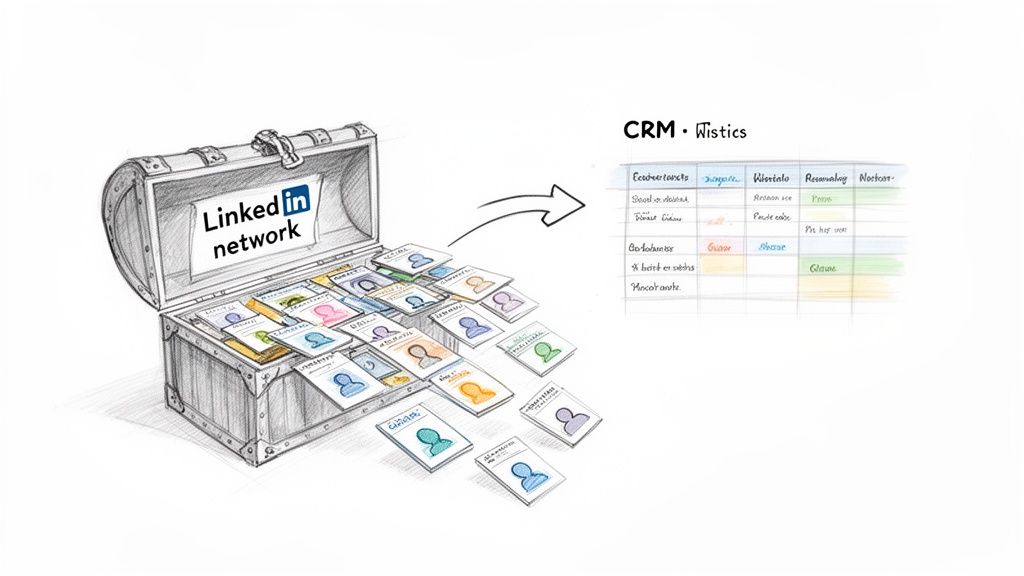
Your LinkedIn network is one of your most valuable professional assets. But keeping it locked inside LinkedIn is like owning a sports car and never taking it out of the garage. You know it's powerful, but you aren't actually using it to get anywhere.
When you learn how to export LinkedIn contacts, you take control. No more mind-numbing copy-pasting of profile details or losing track of that amazing lead you spoke to last month. Instead, you get a clean, organized, and actionable database ready to fuel your growth.
Move From Passive Networking to Proactive Growth
Exporting your contacts is what turns "connecting" into real business development. It’s the bridge that lets you move your network into smart, sophisticated workflows that drive tangible results.
So, what can you do with an exported list? A whole lot:
Build a Powerful CRM: Who wants to manage leads in LinkedIn’s clunky inbox? Nobody. Import your contacts directly into a CRM like HubSpot or Salesforce to track every conversation, schedule follow-ups, and manage your pipeline like a pro.
Personalize Outreach at Scale: Use the data to segment your audience by industry, job title, or location. This lets you craft email campaigns that are ridiculously relevant and actually get opened.
Create a Backup: Ever heard of someone getting their LinkedIn account restricted? It happens. An offline copy of your network is your insurance policy against losing years of hard work.
Analyze Your Network: Drop that CSV into a spreadsheet and start digging. You can quickly spot key influencers, find potential partners, and identify trends you’d never see on the platform itself.
Exporting your contacts isn't just a "nice to have"—it's a must for serious B2B growth. A staggering 80% of B2B leads come from LinkedIn, but many people fail to do anything meaningful with their network beyond the platform. Dive deeper into some powerful LinkedIn lead generation strategies to see what’s possible.
Unlock Your Network’s Full Potential
Ultimately, this is about creating freedom and efficiency. Imagine a startup founder instantly pulling a list of potential investors for their next funding round. Or a sales team building a laser-focused prospect list for a new product launch in minutes, not days.
These are the kinds of powerful moves that start with one simple action: a data export. Ready to learn how? Let's dive in.
The Native LinkedIn Export for Quick Wins
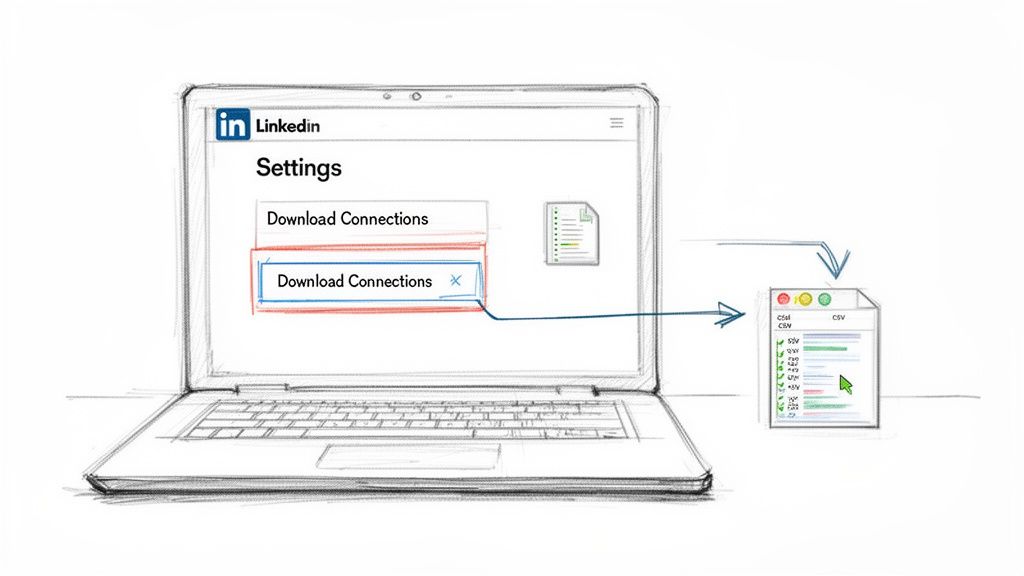
Ready for the fastest way to get your hands on your contact data? Your first stop should be LinkedIn's own built-in export feature. It’s the perfect starting point for anyone who needs a quick backup or a simple list to move over to a CRM.
This native tool lets you request an archive of your data, and tucked inside is a handy CSV file of all your first-degree connections. Think of it as the essential first step in taking control of the network you've worked so hard to build.
Your Step-by-Step Guide to the Export
LinkedIn doesn't make it obvious, but the option is just a few clicks away in the settings. The best part? You don't need any special tools, just your regular LinkedIn account.
Here’s the path to the download page:
Click the "Me" icon at the top right of your LinkedIn homepage, then select Settings & Privacy from the dropdown menu.
On the left-hand sidebar, click on Data Privacy.
In the main section under "How LinkedIn uses your data," find and click on Get a copy of your data.
The next screen gives you a choice. You could download a massive archive of everything you've ever done on LinkedIn, but that’s overkill for this task.
To get just your connections, click the link that says "Want something in particular?" and then check the box next to "Connections." This is the key to getting a clean, focused CSV without all the extra noise.
Finally, hit the Request archive button. LinkedIn will start preparing the data, which usually takes about 10 minutes. You'll get an email with a download link as soon as it's ready.
What to Expect From Your CSV File
Once you open the exported CSV, you’ll see several useful columns of information. For years, this has been a go-to trick for sales pros needing a quick way to organize their network.
You can expect to find basic but crucial fields like:
First Name
Last Name
Company
Position
Connected On Date
It's important to manage your expectations here. A huge piece of the puzzle—the email address—is often missing. You’ll only get emails for contacts who have made them public in their settings, which usually only covers about 20-30% of your list. You can read more about these native export limitations and see how others are navigating this.
While this native export is a fantastic and free starting point, its limitations quickly become obvious if you need enriched data for serious outreach. That’s exactly where more powerful methods come into play.
Supercharge Your Exports With Sales Navigator
If the native LinkedIn export is the trusty sedan of contact management, think of Sales Navigator as the sports car. For anyone serious about lead generation, this tool is an absolute game-changer. You'll go from downloading a simple list of people you already know to proactively building laser-focused lists of your ideal customers.
Sales Navigator is all about precision. Forget the data dump. Here, you're an architect, building lead lists from the ground up with an incredible suite of advanced filters.
Build Hyper-Specific Lead Lists
The real magic of Sales Navigator is its power to sift through the entire LinkedIn network to find your perfect audience. The level of detail you can get into is staggering and blows the standard LinkedIn search out of the water.
You can craft incredibly specific prospect lists using filters like:
Company Size: Zero in on scrappy startups with 11-50 employees or go after enterprise giants with over 10,000.
Industry: Want to talk to "Computer Software" companies? Or maybe "Financial Services"? Easy.
Seniority Level: Instantly isolate the decision-makers by filtering for C-suite execs, VPs, or Directors.
Geography: Pinpoint leads in a specific city, state, or country for hyper-local campaigns.
Years of Experience: Need seasoned veterans with decades of experience? Or are you looking for up-and-comers? You can find them.
This kind of surgical targeting means the list you build is packed with high-quality, relevant leads from the get-go, making your outreach much more effective from the start.
Key Advantages Over the Native Method
Stepping up to Sales Navigator gives you serious firepower compared to the basic export, especially when you need to scale your efforts. The native method is fine for a quick backup, but Sales Nav is built for active prospecting.
The biggest difference-maker? The export limit. A basic LinkedIn account has tight, hidden limits on how many profiles you can view. Sales Navigator lets you save and manage thousands of leads within its platform, giving you a much bigger sandbox to play in.
Now, let's be clear about what Sales Navigator doesn't do. There's no big "Export to CSV" button that spits out a list with verified emails. LinkedIn designed the platform to keep you working within its ecosystem. Getting that rich data out of Sales Navigator and into your other tools is where the real power lies.
For those looking to weave this data into a bigger picture, exploring different LinkedIn prospecting automation strategies can seriously level up your entire lead generation workflow. This limitation perfectly sets up our final, and most powerful, method.
Use AI Scraping for the Ultimate Lead List
Alright, let's talk about the real game-changer. If LinkedIn's native export is for simple backups and Sales Navigator is for surgical targeting, then AI-powered scraping is how you build a killer lead list in minutes. This is the fastest and most powerful way to turn any LinkedIn search into a clean, actionable spreadsheet.
Imagine this: one click. That’s all it takes to pull not just names and companies, but also find verified emails, phone numbers, and other critical data for each contact. That's the magic of a modern tool like Clura. It eliminates manual work and fills the frustrating data gaps that other methods leave behind, giving you a massive head start.
From Manual Drudgery to Automated Power
Let’s be honest, nobody enjoys spending hours cleaning up a messy CSV file. With LinkedIn now home to over 1 billion members, old export methods just can't keep up. The smartest sales teams have already moved on; in fact, 65% plug their contact lists directly into their CRMs, boosting their sales pipeline by an average of 28%.
But here's the dirty secret of manual exports: the cleanup. A shocking 90% of users admit to spending 5-10 hours a week just fixing empty fields and formatting errors. An AI scraper flips that script entirely, giving you a clean CSV with up to 95% data accuracy right from the start.
This quick flowchart breaks down the main paths you can take right inside LinkedIn.
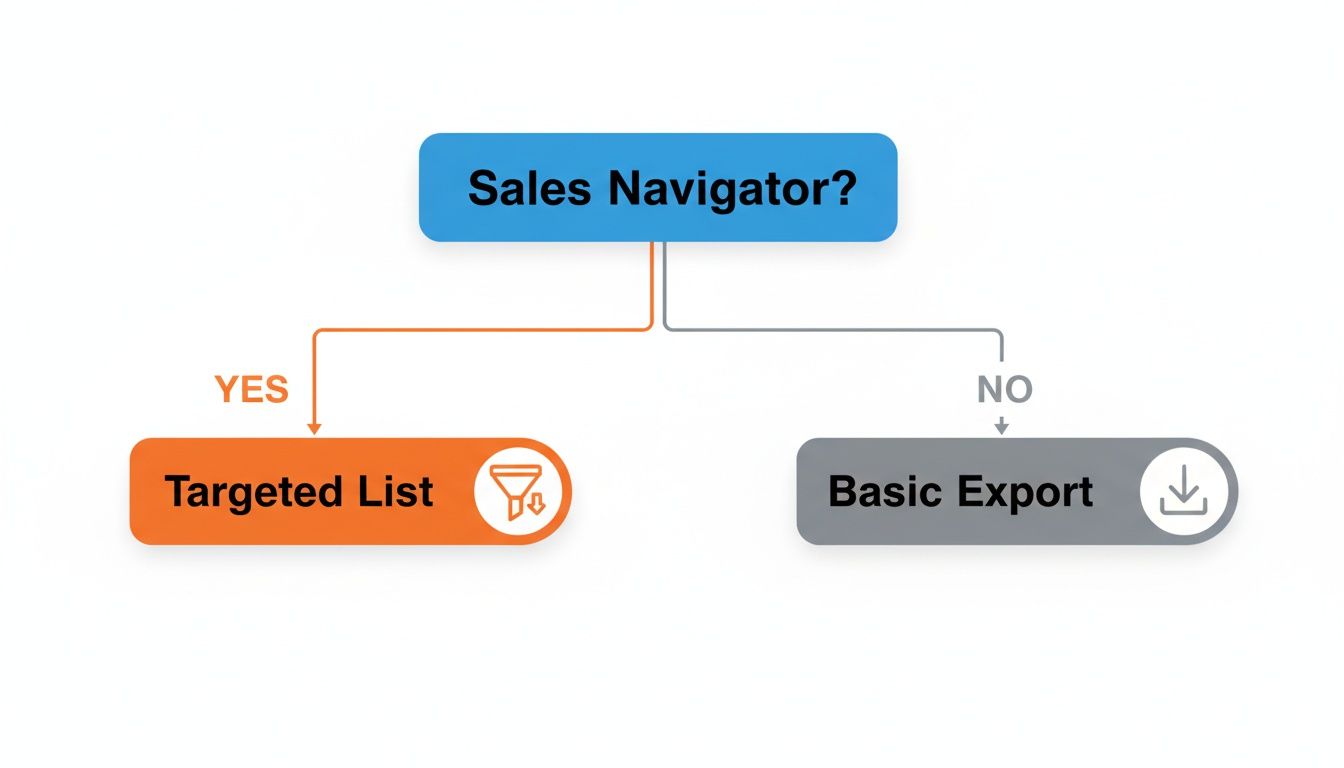
The big takeaway here is that while both are built-in options, Sales Navigator is where you go for building a much more focused and relevant list of leads.
A Real-World Sales Scenario
Picture this: your sales team needs to find 500 marketing managers at mid-sized tech companies in the Midwest. The old-school approach is a multi-day nightmare of manual research, copy-pasting, and paying for a separate service to find contact info.
Here’s how it works with an AI scraping tool:
First, you build that same precise search in Sales Navigator using its powerful filters.
Next, with the search results on your screen, you launch the scraper with a single click.
The tool then automatically visits each profile, grabs the data you need, finds verified professional emails, and neatly organizes everything into a spreadsheet.
The whole thing is over in minutes, not days. You get a perfectly structured CSV, ready to pop right into your CRM or outreach platform. For teams looking to scale their outreach, using dedicated LinkedIn email extractor tools can be a huge force multiplier.
This method combines the best of both worlds: you get the hyper-specific targeting of Sales Navigator with the powerful data extraction that LinkedIn itself simply won't give you. It’s the fastest way to get from finding a prospect to starting a real conversation.
Ultimately, this lets your team stop wasting time on tedious data entry and start focusing on what actually moves the needle—crafting great messages and building relationships. If you're curious to learn more, our detailed guide shows you exactly how to scrape LinkedIn data with AI.
LinkedIn Export Methods Compared
Choosing the right export method depends on your goal. Are you just backing up your network, or are you building a high-intent list for a sales campaign? This table breaks down the key differences at a glance.
Feature | Native LinkedIn Export | Sales Navigator Export | AI Scraper (Clura) |
|---|---|---|---|
Data Included | Basic: Name, Company, Title, Date | Name, Company, Title | Rich & Enriched: All public data + verified emails & phones |
Export Limit | Your entire network of connections | Up to 1,000 leads per list | Up to 2,500 per day (LinkedIn's limit) |
Speed | Slow (can take up to 24 hours) | Fast (nearly instant) | Lightning Fast (minutes) |
Data Quality | Often messy, requires heavy cleaning | Clean but limited | Clean, verified, and ready-to-use |
Best For | Personal network backup, moving to a new CRM | Building targeted lead/account lists | High-volume prospecting & outreach campaigns |
As you can see, while the built-in tools have their place, an AI-powered scraper is in a league of its own for anyone serious about building a high-quality, actionable pipeline from LinkedIn.
How to Clean and Organize Your Exported Data
Getting your hands on a list of contacts is a huge win, but let’s be real—the raw export file from LinkedIn is often a chaotic mess. Don't worry, this is where a little bit of data cleaning magic turns that jumbled spreadsheet into a pristine, CRM-ready asset.
Think of it as the final, crucial step before you can actually put that data to work. A few simple cleanup techniques can save you countless headaches and make your campaigns infinitely more effective.
Common Data Headaches and Quick Fixes
You’ve opened your CSV and... yikes. You're staring at inconsistent company names, job titles all over the map, and full names crammed into a single column. This is a super common problem, but thankfully, it's one you can solve with basic spreadsheet skills.
Here are a few of the most frequent issues and how to tackle them:
Duplicate Entries: Even the best export can have duplicates. Most spreadsheet tools have a one-click "Remove Duplicates" feature. Use it first! It's the fastest way to instantly reduce clutter.
Messy Job Titles: You'll see things like "VP of Sales," "Sales VP," and "Vice President, Sales" for the same role. Use the "Find and Replace" function to standardize these into a single, consistent format.
Inconsistent Company Names: Spotting "Acme Inc.," "Acme," and "Acme Corporation"? An easy fix is to create a new, clean "Company Name" column and use a simple formula like
=PROPER(TRIM(A2))to standardize capitalization and zap extra spaces.
These small fixes make a massive difference in your ability to segment and personalize your outreach later on.
Splitting Names and Building Your List
One of the most classic spreadsheet tasks is splitting a full name into separate "First Name" and "Last Name" columns. This is essential if you want to personalize emails with merge tags like {{firstName}}.
Most spreadsheet software, like Google Sheets or Excel, has a "Text to Columns" or "Split text to columns" feature that does this perfectly. Just select the column with the full names, choose "Space" as the delimiter, and watch it work its magic.
The goal here isn't just to have data, it's to have usable data. A clean list is the foundation of any successful sales or marketing campaign. It ensures your automations run smoothly and your personalization feels genuine.
Once your data is tidy, you can start moving it into your other systems. For a step-by-step walkthrough, check out our guide on how to easily move your data from a CSV to Google Sheets, which is a fantastic next step for collaboration. Spending just 30 minutes cleaning your data can save you hours of manual work and dramatically improve your campaign results.
Your Top Questions About Exporting LinkedIn Contacts, Answered
Alright, you've got the playbook now—from LinkedIn's quick-and-dirty CSV export to the power of more advanced tools. But you probably still have a few questions buzzing around.
Let's clear up the common sticking points right now. My goal is to give you the practical answers you need to export your contacts confidently and responsibly.
Is It Legal to Export Contacts From LinkedIn?
This is the big one. When you use LinkedIn's built-in feature to download your own first-degree connections, you're 100% in the clear. That's your data, and LinkedIn provides the tool for you to access it.
Things get more nuanced when you use automated tools to gather public data. While scraping publicly available information isn't illegal, it's how you use that data that matters. You must respect data privacy laws like GDPR and CCPA.
The bottom line is this: act in good faith. Use the data for legitimate business purposes, be transparent, and always honor people's privacy. Stick to public information and don't dig for sensitive details.
Can I Export the Member List From a LinkedIn Group?
In short, no—at least not directly from LinkedIn. They intentionally don't offer a feature to download a group's member list to protect members from spam.
You might find third-party tools that promise to do this, but be incredibly careful. Using them is almost always a violation of LinkedIn’s user agreement and could get your account flagged or suspended.
A much smarter—and safer—approach is to play the long game. Become a valued member of that community:
Participate in discussions and offer real insights.
Send personalized connection requests to people you have a genuine professional reason to know.
Once they connect, they become part of your network.
Then, you can simply use the standard export methods we've already covered. This way, you're building real relationships and keeping your LinkedIn account in good standing.
How Often Should I Export My Contacts?
This really boils down to how you plan to use the contact list. If you just want a personal backup of your network, exporting your contacts once a quarter is a fantastic habit.
But if you're in a role like sales, marketing, or recruiting, your network changes daily. For you, I’d recommend exporting far more often, maybe even weekly or bi-weekly. This keeps your CRM or outreach tools completely fresh, ensuring you can act on new, valuable connections the moment they arrive.
Ready to skip messy CSVs and export clean, enriched lead lists in one click? Clura is the browser-based AI agent that automates data collection from LinkedIn and beyond. Start building better lead lists in minutes, not days. Explore prebuilt templates and try it free today.
