Learn how to extract data from website to Excel with powerful, modern methods. Discover AI tools and pro tips to automate your data collection workflows.
Let's be real. Manually copying and pasting data from a website into Excel is a soul-crushing task. But what if you could skip the grind entirely? You can extract data from a website to Excel using smart, modern methods that save you countless hours and deliver clean, accurate data every single time.
Tired of Copying and Pasting Into Excel?
We've all been there. Hunched over the keyboard, meticulously highlighting product prices, contact details, or competitor info. You copy, you paste, and what do you get? A jumbled mess of broken formatting, weird hyperlinks, and data that’s already old news the second you hit "Save."
This isn't just a slow process; it’s a productivity killer and a recipe for bad analysis. Every minute you waste fixing formatting or re-copying data is a minute you could have spent on strategy or making decisions that actually move the needle. Countless businesses get stuck in this rut, a perfect example being Yhangry's spreadsheet chaos, before they find a better way.
The True Cost of Manual Data Entry
The problem runs deeper than just wasted time. When you're doing it all by hand, human error is practically guaranteed. A single misplaced decimal point or a skipped row can throw off your entire dataset, leading to flawed conclusions. In today's market, you can't afford to base your strategy on shaky, outdated information.
The old-school method of highlight, right-click, and paste just doesn't scale. To keep up, you need a repeatable, automated system that feeds you clean, structured data whenever you need it.
A Smarter Way to Gather Web Data
Thankfully, we're not stuck in the dark ages. The demand for better data solutions has fueled some incredible innovation. The web scraping market—the engine behind pulling data from websites into tools like Excel—is absolutely exploding.
We're talking about a global market projected to hit USD 1.17 billion in 2026 and rocket to USD 2.23 billion by 2031. This explosive growth is a clear sign that sales, marketing, and e-commerce teams are ditching the manual grind for automated extraction. If you're curious, you can discover more insights about this market growth and see just how big this shift is.
This new approach unlocks some serious potential, letting you:
Automate the grunt work: Set up systems that pull data for you on a schedule, freeing you up for work that actually requires your brain.
Trust your data: By pulling information directly from the source into a perfect format, you eliminate those pesky manual errors.
Get real-time insights: Keep your spreadsheets fresh with automated updates, ensuring your decisions are always based on the very latest information.
In this guide, we'll show you exactly how to leave the copy-paste nightmare behind for good. Get ready to embrace smarter, faster methods for getting web data right where you need it—in Excel.
How to Choose the Right Data Extraction Method
Alright, you're ready to stop wasting hours on manual data entry. But which path should you take? The truth is, there's no single "best" way to extract data from a website to Excel. The perfect tool for the job depends on your goals, your comfort level with tech, and how quickly you need the data.
Think of it like this: you wouldn't use a sledgehammer to hang a picture frame, right? The tool has to fit the task. This section is your guide to picking the right one, every time.
This flowchart nails the core decision you're facing. You can stick with the slow, painful grind of manual work, or you can embrace the speed and sanity of smart automation.
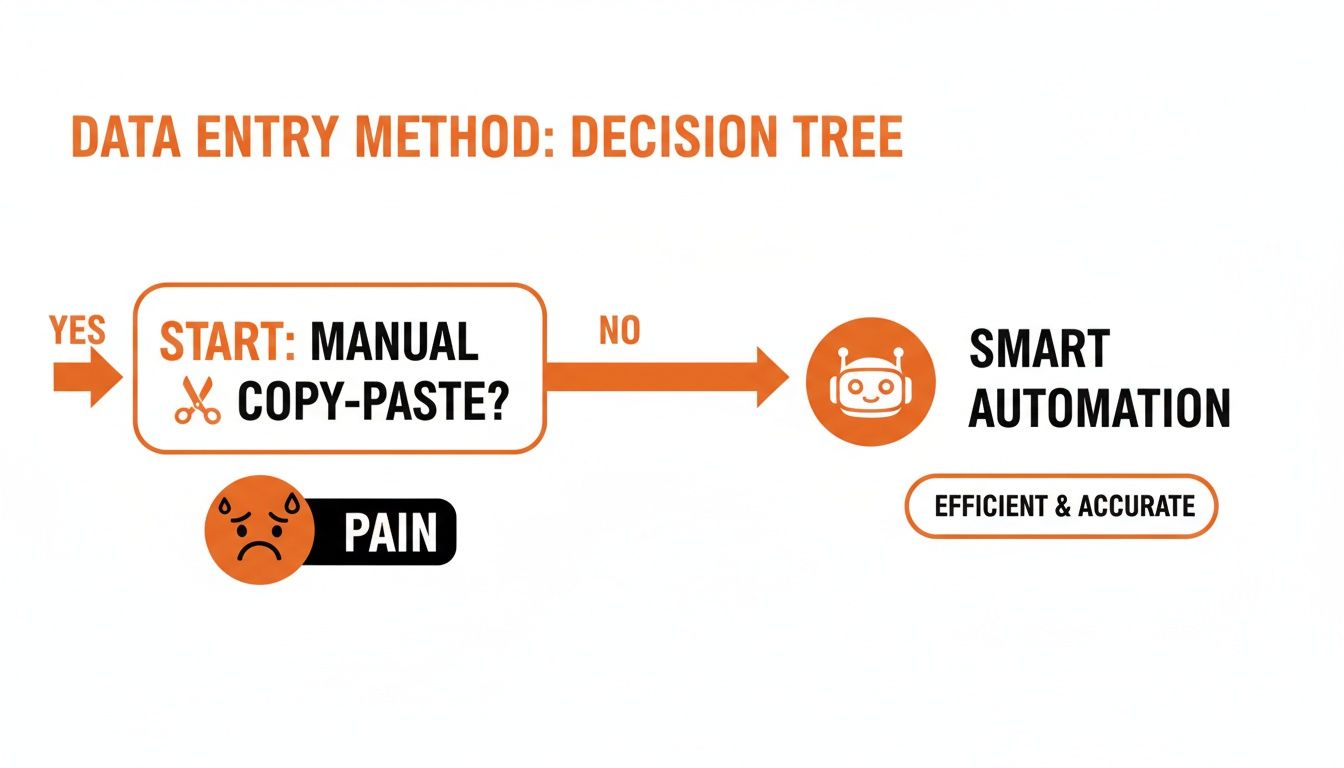
The message couldn't be clearer. While copying and pasting might work for a tiny, one-off task, automation is the only way to go if you want to be efficient, scale your efforts, and keep your sanity intact.
Breaking Down Your Options
To help you figure this out, we'll break down five popular ways to get data from the web into your spreadsheet. We’ll look at how hard they are, how fast they run, and what they’re genuinely good for.
Here’s a sneak peek at the methods we'll dive into:
AI Browser Agents: Incredibly powerful, one-click tools that do all the hard work for you.
Excel Power Query: A feature already built into Excel, perfect for pulling data straight from web pages.
Chrome Extensions: Handy browser add-ons made for quick, targeted data grabs.
Google Sheets Formulas: A clever trick for importing simple tables with a single function.
Code-Based Solutions: For developers, using Python gives you ultimate power and flexibility.
Each of these has its moment to shine. An AI agent is a lifesaver for grabbing structured data from tricky sites like LinkedIn, whereas Power Query is a rockstar for clean, simple HTML tables.
Comparison of Web Data Extraction Methods for Excel
To make this crystal clear, let's put these methods head-to-head. This table gives you a quick snapshot of what you're getting into with each approach, from the technical skills required to how well it scales up.
Method | Best For | Technical Skill | Speed & Scalability |
|---|---|---|---|
AI Browser Agent | Complex, dynamic sites (e.g., social media, e-commerce) & repeatable workflows. | Beginner | High speed, highly scalable |
Excel Power Query | Simple, structured HTML tables (e.g., financial reports, Wikipedia). | Intermediate | Moderate speed, moderate scalability |
Chrome Extensions | Quick, one-off data grabs from simple page elements. | Beginner | Moderate speed, low scalability |
Google Sheets Import | Basic, single-table imports for quick analysis. | Beginner | Low speed, low scalability |
Manual Copy-Paste | A handful of rows from a single, static page. | Beginner | Very low speed, not scalable |
Python Scripting | Large-scale, highly custom, and complex data extraction projects. | Advanced | Very high speed, infinitely scalable |
As you can see, the trade-offs are pretty stark. The easiest methods, like copy-paste, don't scale at all. On the flip side, the most powerful options require you to be a developer.
The sweet spot for most business users—sales reps, marketers, and researchers—is with AI-powered tools that mix incredible power with dead-simple usability. You get the results without needing a computer science degree.
If you're just starting your search, checking out a list of the best data extraction software can give you a fantastic overview of what's out there and help you find a tool that fits your workflow.
Finding Your Perfect Fit
So, what's the final verdict for you?
If you need to repeatedly scrape product data, build lead lists, or track competitor prices from websites that are constantly changing, an AI Browser Agent is a no-brainer. It will save you hundreds of hours.
If you're pulling data from a simple, public HTML table (like a list of country populations on Wikipedia), Excel's Power Query is your best friend.
If you just need a quick, one-and-done list from a basic website, a Chrome Extension will get the job done in seconds.
The rest of this guide is all about action. We'll walk you through these methods with practical, step-by-step examples. Let's turn you into a data extraction wizard.
Effortless Extraction With an AI Browser Agent
Imagine pointing at exactly what you need on a website—product names, prices, contact info—and watching it magically appear in a clean, organized spreadsheet. No code, no clunky tools, just pure, automated data extraction. That’s the reality of using an AI browser agent, and it’s completely changing how we extract data from a website to Excel.
This isn't just a small step up from copy-pasting; it’s a quantum leap. Instead of you doing the mind-numbing work, an AI agent acts as your personal data assistant. You just show it what you want once, and it learns to grab that same information across hundreds or even thousands of pages, flawlessly.
The best part? These powerful tools usually come as simple browser extensions. You go to the website you need data from, click a button to activate the agent, and let it do the heavy lifting. It's the ultimate "set it and forget it" solution.
One-Click Data Collection in Action
Let's walk through a real-world scenario. You're a sales rep building a prospect list of marketing agencies in New York. The old way would involve days of staring at a business directory, copying and pasting until your eyes glaze over.
With an AI agent, the process is a different story:
Go to the directory website.
Click the extension icon. The AI instantly scans and understands the page’s layout.
Use a pre-built template, like a "Lead List Builder," which tells the AI exactly what to look for: company names, websites, phone numbers, and addresses.
Click "Export." The agent scrapes all the listings on the page (and subsequent pages), structures the data perfectly, and hands you a ready-to-use CSV or Excel file.
Done. In less than a minute, you have a perfect spreadsheet ready for your CRM. Meanwhile, your competitors are still on page one of their manual search.
This is the kind of simple, one-click workflow that turns a tedious task into a quick win.
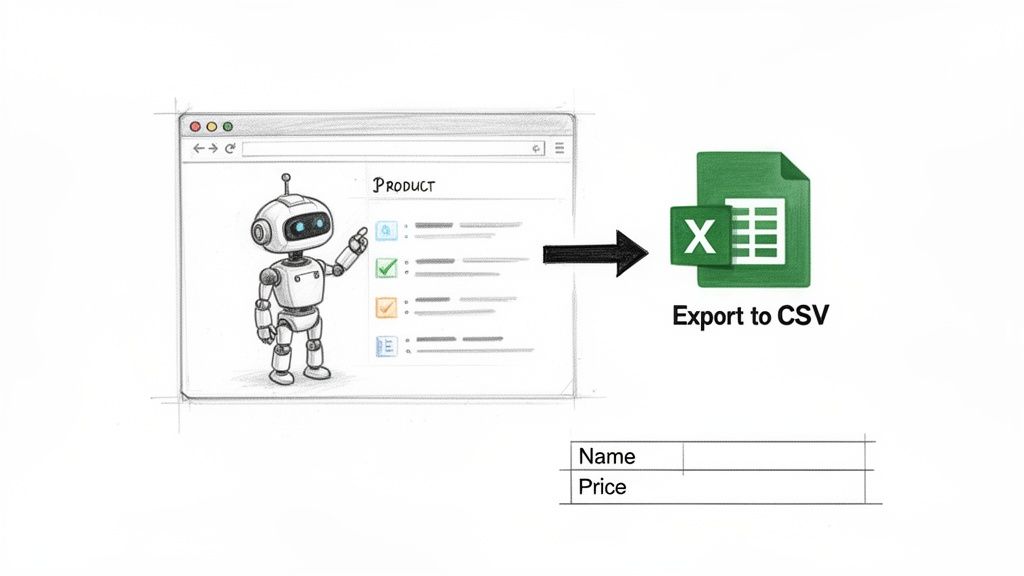
The secret sauce here is the focus on pre-built "recipes" or templates. They remove all the guesswork and make complex web scraping accessible to anyone, no technical skills required.
Why AI Agents Outshine Other Methods
Sure, other data extraction methods have their place, but AI browser agents are built for the messy, dynamic nature of the modern web. They breeze through common roadblocks that trip up other tools.
Pagination: Need data from pages 1 through 50? The AI navigates through them automatically.
Dynamic Content: It easily handles sites that load more information as you scroll, like social media feeds or infinite-scroll product lists.
Login Walls: Many agents can operate behind a login, letting you scrape data from private platforms or members-only directories.
This level of intelligence is a game-changer, unlocking data from sources that used to require custom-coded scripts. If you want to learn more about setting up these kinds of workflows, we have a great guide on how to automate data collection.
AI-powered extraction isn't just a niche tool; it's a massive market shift. Businesses are seeking smarter, faster ways to gather sales and market intelligence.
The demand for AI-driven web scraping is exploding. The market, valued at USD 7.79 billion in 2025, is projected to skyrocket to an incredible USD 47.15 billion by 2035. This growth is all about the urgent need for real-time competitive insights in e-commerce, finance, and just about every other industry.
Popular Use Cases for AI Agents
The applications for this technology are practically endless. Here are a few ways people are putting AI agents to work:
Sales Prospecting: Scrape LinkedIn or industry directories to build lists of ideal customer profiles.
E-commerce Price Monitoring: Automatically track competitor prices on Amazon or Shopify.
Market Research: Aggregate customer reviews from sites like G2 or Capterra to analyze market sentiment.
Recruiting: Pull candidate profiles from job boards and professional networks to build a talent pipeline in a fraction of the time.
For anyone who wants to get a little more technical, understanding a website's HTML structure can be helpful. If you’re curious about converting web tables directly, you’ll find this overview of HTML to Excel conversion methods insightful.
Ultimately, by handing over the grunt work of data extraction to an AI, you free up your team to focus on what humans do best: analyzing data, finding the story within it, and making brilliant strategic decisions. It’s the smartest way to turn the web’s infinite information into your competitive advantage.
Using Excel’s Built-in Power Query
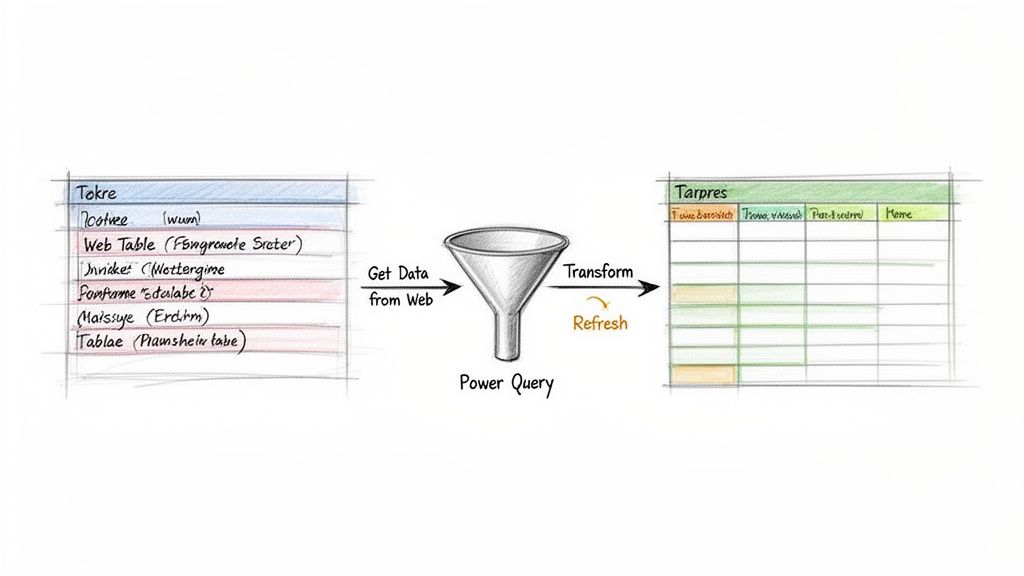
If you live and breathe Excel, you’re going to love this. Tucked right inside the Data tab is a powerhouse tool called Power Query. Its From Web feature is a game-changer for pulling data directly from websites.
Forget tedious copy-pasting. This is your built-in secret weapon for automating data extraction and keeping your spreadsheets humming with fresh information.
Here’s a step-by-step guide to get you started:
Go to the Data Tab: In Excel, click
Data>From Web.Enter the URL: A dialog box will pop up. Paste the URL of the webpage containing the data you want to extract and click
OK.Select Your Data: The Navigator window will appear, showing a list of tables Excel found on the page. Click on each one to preview it.
Load or Transform: Once you find the right table, you have two choices:
Load: This pulls the data directly into a new worksheet.
Transform Data: This opens the Power Query Editor, where you can clean and shape the data before it lands in your spreadsheet. This is where the real magic happens.
Clean and Shape Your Data in Minutes
Inside the Power Query Editor, cleaning messy web data is almost fun. Got extra columns you don't need? Just right-click the header and select Remove. It’s that simple.
You can also split columns, merge columns, filter rows, and change data types with a few clicks. Every change you make is recorded as a step, so you can easily undo mistakes or adjust your workflow later. By shaping the data before it gets into your main workbook, you keep your Excel file lean, mean, and fast.
I’ve seen teams cut their data cleanup time by over 50% just by switching from manual work to Power Query. The efficiency gains are real.
Set Up Automatic Refreshes
What’s even better than pulling data once? Pulling it automatically on a schedule!
Once your query is set up, you can tell Excel to refresh it for you. This is perfect for tracking things that change often, like stock prices, sports scores, or competitor pricing.
Here’s how to set it up:
Go to the Data ribbon and click Queries & Connections.
In the pane that appears, right-click your query and choose Properties.
Check the box to Refresh every X minutes and set your desired interval.
Your workbook is now a living document, always in sync with its web source. Getting comfortable with Power Query is one of the best skills you can develop to take your Excel game to the next level.
Exploring Other Data Extraction Methods
While AI agents and Power Query are game-changers, it pays to know what other tools are in the data extraction toolbox. Sometimes, a simple method is all you need, while other times, you need ultimate power and control.
Let's walk through a few other ways you can extract data from a website to Excel. This gives you a full spectrum of options, ensuring you're ready for any data-gathering challenge, big or small.
The Good Old Copy-Paste
First up, the classic: manual copy-and-paste. If you just need to snag five names and email addresses off a simple, static page, this will get the job done in seconds. It’s fast, dirty, and requires zero setup.
But let's be real—for anything more than a tiny handful of records, this method breaks down quickly. You’ll spend more time cleaning up wacky formatting and fixing errors than using the data. It's a quick fix for a tiny task, not a real solution for serious data collection.
A Clever Trick With Google Sheets
Here’s a fantastic little trick that works surprisingly well for pulling clean, public HTML tables. Google Sheets has a built-in function called IMPORTHTML that can pull table or list data directly from a website's URL.
The formula is straightforward: =IMPORTHTML("URL", "table", index_number)
First, you pop in the webpage URL.
Then, you tell it if you're grabbing a "table" or a "list".
Finally, you specify which one on the page you want (the 1st, 2nd, 3rd, and so on).
For instance, you could use it to instantly pull a table of country codes from a Wikipedia page. Once the data is in your Google Sheet, you can just download it as an Excel file. It's a brilliant shortcut for no-fuss imports of structured data.
The
IMPORTHTMLfunction is my go-to for grabbing simple, clean tables when I'm away from my main computer. It’s lightweight, surprisingly fast, and incredibly effective for straightforward data pulls.
For Ultimate Power: Python and BeautifulSoup
When you need maximum flexibility and absolute control, nothing beats writing your own code. For developers and data scientists, Python is the undisputed king of web scraping, and libraries like BeautifulSoup and Requests are the industry standard.
This approach lets you tackle any website, no matter how complex. You can work through tricky login forms, navigate sites that rely on JavaScript, and customize your data extraction logic down to the tiniest detail. If you want to dive deeper into the technical side, our guide on how to scrape a web page has a lot more context.
Here's a quick peek at the BeautifulSoup package on PyPI, the Python Package Index.
As you can see, this library is immensely popular and well-supported. It's a trusted and powerful tool for parsing HTML and XML documents.
The obvious trade-off? The learning curve is steep. This method is not for beginners. You'll need to be comfortable with programming, understand HTML structure, and be ready to debug your scripts whenever a website changes its layout.
When is coding the right move?
Large-Scale Projects: When you need to extract millions of records from thousands of pages.
Highly Custom Needs: For scraping data from bizarre, non-standard sites.
Full Automation: When you want to integrate data extraction into a larger, automated data pipeline.
While it’s the most powerful option, it's also the most time-intensive. For most business users, an AI agent or Power Query will deliver 95% of the results with only 5% of the effort.
Your Top Web Data Extraction Questions Answered
Alright, you've seen the powerhouse tools available for pulling data from websites straight into Excel. But as you get ready to dive in, you probably have some "what if" questions. That's totally normal!
This section tackles the real-world questions that pop up once you start your first project. We'll cover everything from the sticky legal stuff to what to do when your perfect workflow suddenly breaks.
Is It Legal to Scrape Data From Websites?
This is the big one. The short answer is: yes, scraping publicly available data is generally legal. Multiple court rulings have backed this up, establishing that information out in the open on public websites is fair game.
But—and this is a big but—it’s not a free-for-all. You need to be a good internet citizen.
Always check a website's robots.txt file (you can find it by adding /robots.txt to the end of the root domain). This file tells crawlers which pages the site owner prefers you not to visit. Beyond that, here are the golden rules:
Don't steal copyrighted content. You can't just lift entire articles or a photographer's portfolio.
Stay out of private areas. Scraping data behind a login wall without permission can get you into trouble.
Don't overload the server. Blasting a website with thousands of requests a minute can crash it. Ethical scraping tools are built to be "polite" and make requests at a reasonable rate.
Bottom line: as long as you’re gathering public info responsibly, you’re usually on safe legal ground.
How Do You Handle Sites That Make You Log In?
This is a classic hurdle. Maybe you're a sales rep gathering prospect info from a social network or an analyst needing data from a private industry portal. Standard tools often hit a wall here because they can't log in for you.
This is where modern AI-powered browser agents shine. Since they operate as an extension inside your browser, they can piggyback on your existing login session. You just log into the site like you always do, then activate the agent. It will then see what you see and can start pulling the data you need. It’s a beautifully simple and secure way to access data in members-only sections.
Pro Tip: Always double-check a platform's terms of service when working behind a login. Many sites have specific rules about automated data gathering, even for their own users.
What Happens When a Website Changes Its Layout?
Ah, the dreaded website redesign. It’s the number one reason an automated scraping job suddenly breaks. One day it's working perfectly; the next, the HTML structure is different, and your tool can't find anything.
If you built your scraper with Power Query or a Python script, you have to roll up your sleeves and dive back in. You’ll have to manually edit your query or update your code to match the new layout. It can be a massive time sink.
This is another spot where newer AI agents show their value. They are often built with smarter logic that can adapt to small website changes on its own. For bigger redesigns, many let you quickly "re-teach" them the new layout with just a couple of clicks. What used to be hours of frustrating code fixes can now be a two-minute job.
What are the Best Ways to Clean Data in Excel?
You did it! The data is in your spreadsheet. But before you start building those killer charts, there's one last crucial step: cleanup. Raw data from the web is rarely perfect, but with a few Excel tricks, you can make it sparkle.
Remove Duplicates: Go to the Data tab and click Remove Duplicates. It’s a one-click way to instantly get rid of repeated rows.
Trim Whitespace: Use the
TRIM()function. It zaps any annoying extra spaces before or after your text. Just type=TRIM(A2)in a new column to clean up the text in cell A2.Text to Columns: This tool (also on the Data tab) is a lifesaver for splitting things like a full name into "First Name" and "Last Name" columns.
Find and Replace: Use this for quick standardization. For example, you can find all instances of "United States," "U.S.," and "US" and replace them with "USA" to keep your data consistent.
A few minutes spent tidying up your data is a small investment that pays off big time, ensuring your analysis is accurate and your final report looks sharp.
Ready to turn this knowledge into action and officially break up with manual copy-pasting? With an AI-powered tool, you can pull clean, structured data from virtually any website in a single click. Dive into prebuilt templates and start automating your research, lead generation, and competitive analysis today. Try Clura for free and see for yourself!
