Unlock your data's potential with this guide on PDF data extraction to Excel. Learn to automate workflows and use AI tools for flawless results.
We’ve all been there: staring at a PDF, knowing the valuable data you need is trapped inside. The thought of manually copying it all into Excel is slow, tedious, and a recipe for errors.
But getting data out of a PDF doesn’t have to be a headache. Whether it’s a quick one-off task or a mountain of documents, the right approach can turn hours of work into minutes. From simple converters to powerful automation tools, you have options. Let's explore how to pick the right one for your job.
Why Manual PDF Data Entry Is Holding You Back
Manually copying data from invoices, reports, or lists is more than just boring—it's a major drain on productivity and a breeding ground for costly mistakes. Every hour spent on manual entry is an hour not spent on analysis, strategy, or growing your business.
Think about the real cost: delayed reports, poor data quality, and valuable team members stuck on tasks a machine could do better. This is exactly why automated PDF data extraction to Excel is a game-changer, helping you turn locked information into a powerful, usable asset.

Shifting to a Smarter Workflow
Switching to an automated solution isn't just about speed; it's about building a data pipeline you can trust. Automation removes the human error that creeps into manual work, giving your team the confidence to make decisions based on accurate, clean data.
Learning to automate data entry in Excel is a critical step toward reclaiming your team's time. It empowers your people with structured data they can use immediately, moving them from tedious transcription to meaningful analysis.
Choosing the Right PDF to Excel Extraction Tool
Not all data extraction tasks are the same. Pulling a single clean table is one thing; processing a thousand scanned invoices is another. The key is to match the tool to the task.
You wouldn’t use a sledgehammer to hang a picture. The same logic applies here. Let's break down the three main approaches so you can make the right choice for your needs.

Here’s a quick comparison to help you decide.
Comparing Your PDF to Excel Extraction Options
Method | Best For | Technical Skill | Cost | Scalability |
|---|---|---|---|---|
Online Converters | Quick, one-off extractions of simple, non-sensitive tables. | None. Just drag and drop. | Mostly free or very cheap. | Very low. Not built for volume. |
Desktop Software | Regular tasks with complex or scanned PDFs. | Basic to Intermediate. | Subscription-based. | Moderate. Handles batches, but requires manual work. |
Programmatic Tools | High-volume, repeatable, and automated workflows. | Intermediate to Advanced. | Varies (free built-in tools to high-cost). | Extremely high. Built for automation. |
Let's dive into what each of these options means for your workflow.
Simple Online Converters
Think of these as your quick fix. Got a clean PDF and need the data in Excel now? An online converter is perfect. They are incredibly simple: upload the file, click a button, and download the spreadsheet.
The main drawbacks are security and scale. Never upload confidential or sensitive information to a free online tool. These services are also not designed for processing multiple files, making them unsuitable for recurring tasks.
Powerful Desktop Software
For more control, better security, and advanced features, dedicated desktop software is the way to go. Tools like Adobe Acrobat Pro offer powerful Optical Character Recognition (OCR) to handle scanned documents and complex layouts.
Desktop solutions keep your data secure on your own computer, which is essential for sensitive financial or personal information. They're ideal for businesses that handle a moderate, steady flow of PDFs. The subscription cost often pays for itself through increased accuracy and efficiency. For a deeper look, check out this guide to the best data extraction software.
Advanced Programmatic Solutions
For high-volume, repetitive workflows, you need true automation. This is where programmatic tools like Microsoft's Power Query (already in Excel) or custom scripts shine.
These solutions are built for scale and consistency. You set up the workflow once—defining how to find tables, clean data, and structure the output—and the tool can repeat that process flawlessly across thousands of documents. This is the gold standard for automating tasks like invoice processing or monthly report aggregation. You can explore proven methods for extracting data from PDF into Excel to see how powerful these integrated tools can be.
How AI and OCR Get You That Perfect Data
How does a modern tool turn a messy, scanned PDF into a clean Excel file? The magic comes from two key technologies working together: Optical Character Recognition (OCR) and Artificial Intelligence (AI).
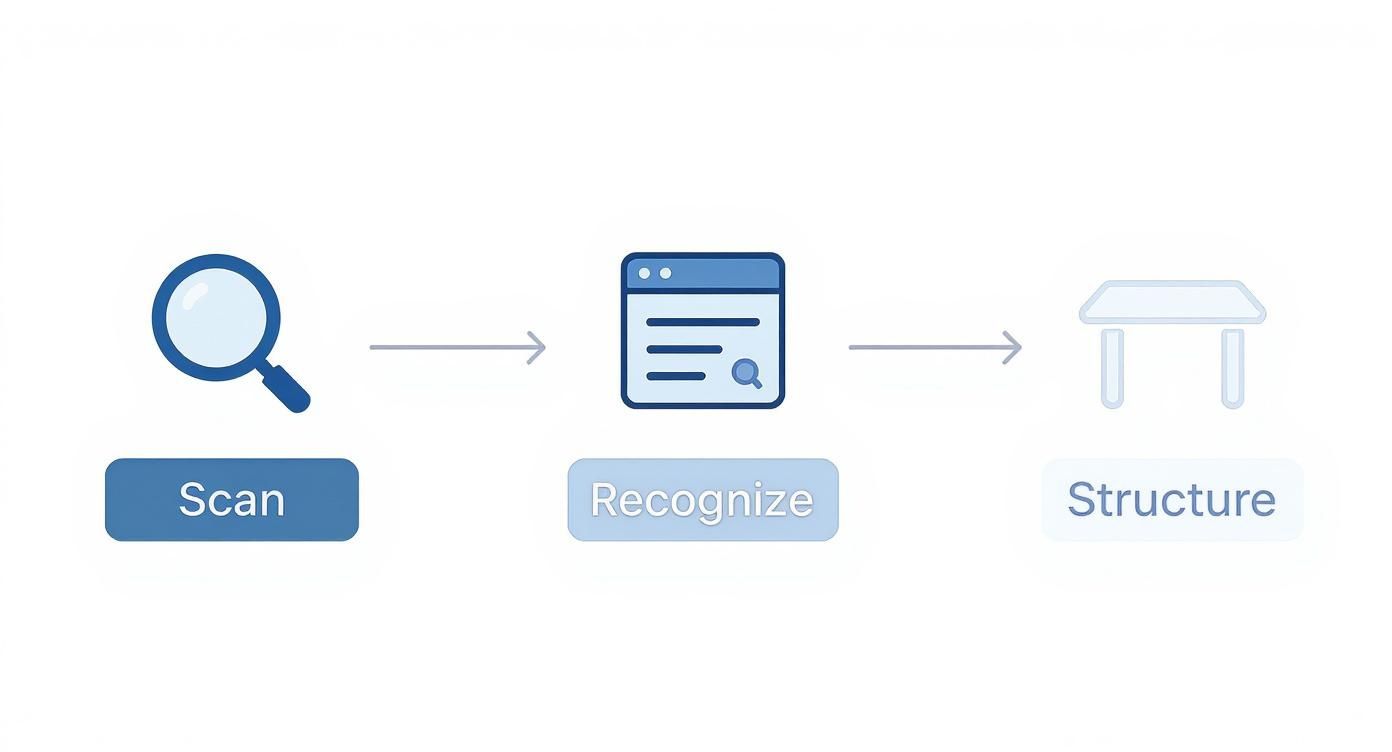
OCR acts as the "eyes" of the operation. A scanned document is just an image; the computer sees pixels, not text. OCR scans this image, identifies the shapes of letters and numbers, and converts them into machine-readable text. It’s the essential first step that brings the document's data to life.
From a Wall of Text to Structured Genius
Once OCR provides the text, AI acts as the "brain." It understands the context and structure of the document.
It spots key-value pairs: The AI recognizes patterns like "Invoice Number:" followed by a string of digits.
It finds tables: It intelligently identifies where tables start and end, even with messy borders or across multiple pages.
It understands layouts: The AI knows that data in a column is related and that a row represents a single record, like an invoice line item.
This intelligent analysis is what separates a powerful pdf data extraction to excel tool from a basic converter. It’s the difference between getting a jumbled mess and a clean, organized dataset ready for immediate use. See how these tools are transforming data workflows on nanonets.com.
This level of precision lets you build automated processes you can depend on. The system doesn't just grab data; it validates it, flags potential issues, and delivers a clean file every time, turning a headache into a hands-off operation.
Your First PDF Extraction with Power Query
Let's get hands-on. We'll walk through extracting data using a powerful tool you likely already have: Microsoft Power Query. It’s built into modern versions of Excel and is a game-changer for this type of work.
We'll tackle a common scenario: extracting a multi-page financial table from an annual report PDF. By the end, you'll have a repeatable process you can use on your own documents.
Step 1: Connect to Your PDF Source
First, you need to point Excel to your PDF file. Power Query can handle a single PDF or an entire folder of them.
Open a new Excel workbook.
Go to the Data tab on the ribbon.
Click Get Data > From File > From PDF.
Browse to your PDF file, select it, and click Import.
Excel will now analyze the PDF to identify all the tables and pages within it.
Step 2: Navigate and Select Your Data
The Navigator window will appear, showing a list of every table and page Power Query found.
Click on each item in the list on the left to see a preview on the right.
Find the table that contains the data you need. Power Query often groups tables that span multiple pages into a single item.
Select the checkbox for your desired table.
Click the Transform Data button to open the Power Query Editor.
This simple workflow—Scan, Recognize, Structure—is the engine behind automated data extraction.
Step 3: Transform and Clean Your Data
Welcome to the Power Query Editor. This is where you clean up the raw data before it hits your spreadsheet. Here are a few common cleaning steps:
Remove Unwanted Rows: If you see blank rows or extra headers, right-click on them and select Remove Rows.
Promote Headers: If your column headers are in the first row of data, go to the Transform tab and click Use First Row as Headers.
Set Data Types: Power Query guesses data types, but it's wise to double-check. Click the icon in each column header (e.g., "ABC" for text) and select the correct type, like Decimal Number for financial figures or Date for dates.
As you perform these actions, Power Query records them in the "Applied Steps" panel. This creates a repeatable recipe that will automatically apply to the data every time you refresh the query.
Once your data looks clean and organized, click Close & Load. Power Query will load the pristine data into a new Excel worksheet.
Pro Tips for Perfectly Clean Excel Data
Getting data into Excel is a huge win, but the real value comes from making that data clean, consistent, and ready for analysis.
This is where you can take your skills to the next level. Let's cover a few expert tips to make your data spotless.

Banish Pesky Spaces and Inconsistencies
Hidden spaces can wreak havoc on formulas and sorting. Use the TRIM function in Excel to remove all leading and trailing spaces from your text.
For standardizing entries (e.g., changing "U.S.A." and "US" to "United States"), Excel’s Find and Replace tool is your best friend.
Split and Structure Your Columns Like a Pro
Often, data that should be in separate columns is merged into one, like a "Full Name" column. Excel’s Text to Columns feature solves this instantly.
Highlight the column you want to split.
Go to the Data tab and click Text to Columns.
Choose "Delimited" and specify the separator (like a space or comma).
In seconds, you'll have perfectly structured columns that are much easier to work with.
Map and Validate Your Data for Rock-Solid Integrity
Sometimes, the column headers from your PDF won't match your Excel template. Data mapping is the process of matching the source columns from the PDF to the target columns in your spreadsheet. This ensures every piece of information lands exactly where it should, which is crucial if you plan to automate data extraction.
Once your data is in place, use Data Validation to set rules for what can be entered into a cell. You can restrict entries to numbers, dates, or items from a dropdown list. This simple step prevents errors and keeps your dataset clean and reliable.
Your Top PDF Data Extraction Questions, Answered
As you dive in, you might have some questions. Here are answers to a few common ones.
Can I Really Pull Data from a Scanned PDF That’s Just an Image?
Absolutely! This is where Optical Character Recognition (OCR) technology shines. A good extraction tool with OCR can "read" the text from an image, turning it into editable data you can import into Excel. For best results, start with a clear, high-quality scan.
What’s the Trick for Tables That Spill Across Multiple Pages?
This used to be a major headache, but modern tools like Power Query are designed for it. During the import process, you can select all the pages containing parts of your table. The software is smart enough to recognize the continuous table and will stitch the pages together into a single, seamless dataset in Excel.
For a Simple PDF to Excel Job, What’s the Best Free Tool?
For a quick, one-time conversion of non-sensitive data, a free online converter is the fastest option. Just upload, convert, and download.
For anything more complex, or for handling confidential information, the best free tool is likely already on your computer: Power Query in Excel. It’s powerful, completely secure, and lets you build reusable extraction workflows. It offers a perfect blend of power and accessibility.
Ready to stop wrestling with PDFs and start automating your data workflows? Explore prebuilt templates to see how you can simplify your process.
