
Learn how to convert from html to excel using 6 practical methods - copy-paste, structured exports, and AI tools for clean data fast.
Getting data from a webpage into a clean Excel spreadsheet can feel like a superpower. It’s the difference between staring at a messy webpage and having structured, actionable data ready to go.
You could try a quick copy-paste, use Excel’s built-in "From Web" feature for a direct import, or use an AI-powered browser extension for one-click automation that delivers perfectly clean data. Mastering this skill turns chaotic web pages into your next big insight.
Why Bother Converting HTML to Excel?
Let's be honest: raw web data is a nightmare. It's locked into static layouts, making it nearly impossible to sort, filter, or analyze. Trying to make decisions with unorganized data is like trying to navigate with a crumpled, unreadable map. This is exactly why moving data from HTML to Excel is so powerful.
When you pull information from a webpage into a structured spreadsheet, you unlock its true potential. That messy list of business contacts becomes a filterable sales pipeline. That jumble of product prices transforms into a competitive analysis dashboard. It’s a strategic move that turns static information into dynamic intelligence.
Unlock Actionable Insights from Web Data
Think about all the tedious manual work this one skill can eliminate. It's the key to making smarter, data-driven decisions without the headache of copying and pasting cell by cell.
Here are just a few real-world examples:
Build Hyper-Targeted Sales Lists: Extract contact details from online directories to create a laser-focused list of leads for your next campaign.
Track Competitor Prices: Scrape pricing data from competitor websites to monitor the market and adjust your strategy in real-time.
Compile Market Research: Gather product reviews, customer feedback, or industry stats to inform your next business plan.
Automate Reporting: Pull key metrics from web-based dashboards directly into Excel, streamlining your reporting workflows.
The Excel icon says it all—it's the destination where your web data gets organized and clear.
Once inside a spreadsheet, your data is no longer just text on a page; it’s a powerful asset ready for you to slice, dice, and analyze.
This isn't a niche skill, either. The global data conversion services market was valued at a massive $39.8 billion in 2021 and is projected to explode to $566 billion by 2031. That growth shows how critical it is for businesses to transform data from formats like HTML into something useful, like Excel. You can discover more insights about this market trend on Allied Market Research.
Learning to convert from HTML to Excel isn't just about moving data—it's a fundamental skill for modern business. It empowers you to work faster, smarter, and with greater accuracy.
Sometimes, you just need a simple tool for a simple job. For those moments when you see a small chunk of data on a webpage and need it in a spreadsheet now, a couple of manual methods are your best bet.
They aren't fancy and don't always give you clean data, but they are built right into your browser and get the job done for simple, one-off tasks. Let's cover the classics: the tried-and-true copy-paste and the browser's "save as" feature. Knowing when to use them—and when not to—is key.
The Classic Copy and Paste
You already know this move. See a table, highlight it, hit Ctrl+C, and paste it into Excel with Ctrl+V. When you're dealing with a perfectly formatted little table, this method is magic. It can take seconds.
But here’s the catch: it's a gamble. More often than not, you’re not just copying text; you're dragging along invisible HTML baggage. The result? A mess of merged cells, weird formatting, and data scattered everywhere. You can easily spend 10 minutes cleaning up a paste that took 10 seconds to make.
Pro Tip: After you paste into Excel, look for the small clipboard icon that pops up. Click it and try the "Paste Options," especially "Match Destination Formatting." It's a lifesaver that can strip out a lot of junk formatting from the start.
Saving the Web Page Directly
Another trick is to save the entire webpage. Right-click anywhere on the page, hit "Save As," and choose the "Web Page, Complete" option. This downloads the HTML file and a folder of assets to your computer.
From there, you can open that local HTML file directly with Excel. Excel will try to parse the file and find any tables it can. This approach is often better at keeping a table's structure intact than a simple copy-paste. However, it tends to pull in everything else on the page—sidebars, footers, ads, you name it. Be prepared to do some serious cleaning to isolate the data you want.
This decision tree can help you figure out when a quick manual job is enough and when you need a better tool.
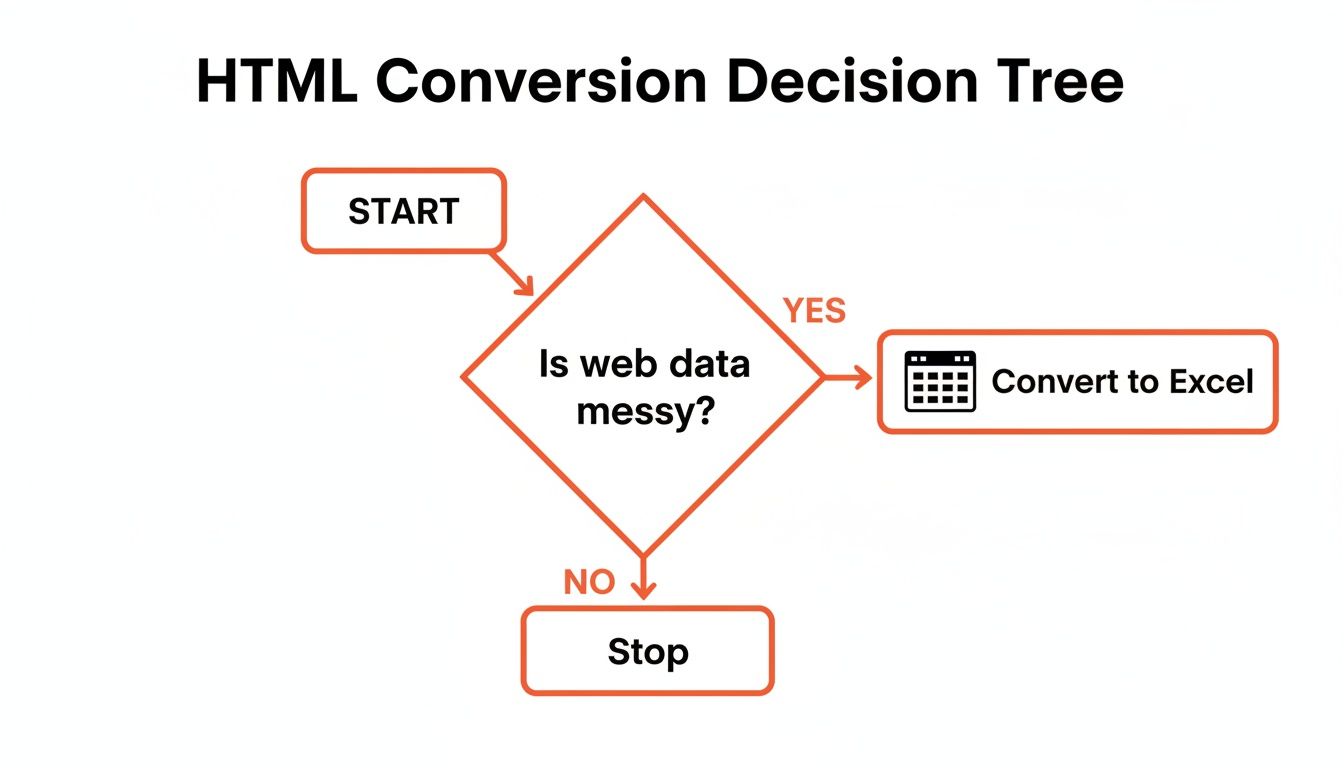
The bottom line is clear: if the data looks even a little messy or is more than a handful of rows, manual methods will waste your time. That’s your cue to find a more powerful tool.
A great practical example is grabbing contact info from social platforms. Learning how to export LinkedIn contacts to Excel is a perfect way to see these data extraction principles in action.
While these manual tricks are good in a pinch, they have their limits. They are the starting point that helps you appreciate the more automated and reliable solutions we're about to cover.
Time to Level Up: Using Excel's Own Web Query Tool
Tired of the copy-paste-and-pray method? Let's pull back the curtain on a powerful tool you probably already own: Excel's From Web feature. This gem is part of Power Query and it's built right into Excel, ready to make your life easier.
Think of it as creating a live data pipeline from a website to your spreadsheet. Instead of pasting a static snapshot, you’re building a connection you can refresh with one click. For anyone tracking changing information—like stock prices, sports stats, or competitor pricing—this is a game-changer. It's your first step into automated data gathering, and it's been hiding on the Data tab all along.
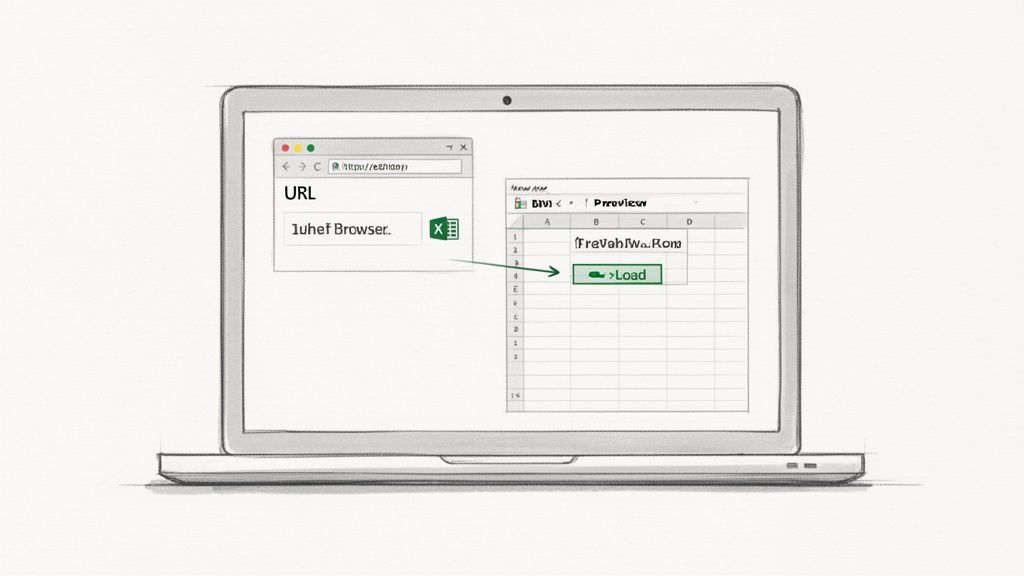
The interface is simple. You give it a URL, and Excel does the heavy lifting, finding all the structured data tables on the page for you to choose from.
How to Pull Data Straight from a URL
Getting this set up is easier than you think. You don't need to be a data expert. Just point Excel in the right direction.
Here's how to do it:
Go to the Data tab in Excel's ribbon.
In the "Get & Transform Data" section, click From Web.
A dialog box will pop up. Paste the URL of the page you want to get data from.
Click OK.
Excel will analyze the page. After a moment, a "Navigator" window will appear, showing a list of all the HTML tables it found. You can click on each one for a live preview. Once you find the table you need, just click the Load button.
This is where it gets brilliant: Your data is now linked to that website. Need the latest numbers? Go to the Data tab and click Refresh All. Excel will automatically fetch the new data and update your table. No more manual work.
This direct connection is a lifesaver for tasks that require up-to-date information, whether you're monitoring a product catalog or tracking financial data.
The need for tools like this is a huge part of the data world. HTML conversion services accounted for 25% of the global data conversion market in 2021. That number tells a story: businesses everywhere are working to turn web data into usable formats. You can learn more about HTML conversion service trends to see how critical this process is.
Where the Web Query Tool Hits a Wall
As great as this tool is, it's not perfect. It works best with clean, simple websites that use standard HTML tables.
You'll likely run into problems in a few common scenarios:
Complex, Modern Websites: Many sites today are built with JavaScript frameworks like React or Angular. They load data dynamically as you scroll, which can confuse Excel’s scraper. It often can't see the data because it's not in the initial HTML.
Pages Behind a Login: The web query tool can't log in for you. Any data that requires a username and password is off-limits.
Data Spread Across Multiple Pages (Pagination): If a table is broken up into Page 1, Page 2, Page 3, and so on, Excel will only grab the first page. It doesn't know how to click "Next."
If you're hitting these roadblocks, don't worry! It just means you’ve outgrown Excel's basic tool. Now it's time to look at more specialized solutions built for the modern web.
Let the Browser Do the Heavy Lifting: Automating with Extensions
Alright, let's talk about the real game-changer. When manual copy-pasting is a chore and Excel's Web Query can't keep up, it's time to bring in a specialist: a modern, AI-powered browser extension. This is, by far, the most efficient way to convert from HTML to Excel.
These tools are magic for data gathering. Forget about fighting with broken formatting or messed-up columns. A great browser extension lets you point, click, and pull structured data from any website into a perfectly clean CSV or Excel file. It’s the "easy button" for data extraction.
The Power of One-Click Scraping
Picture this: you're on a business directory or an online event's exhibitor list, trying to build a prospect list. The old way? Hours of mind-numbing copy-pasting of names, titles, and company info.
An automated browser extension shrinks that task to seconds. The process is simple:
Install the extension from the Chrome Web Store.
Browse to the webpage with the table or list you need.
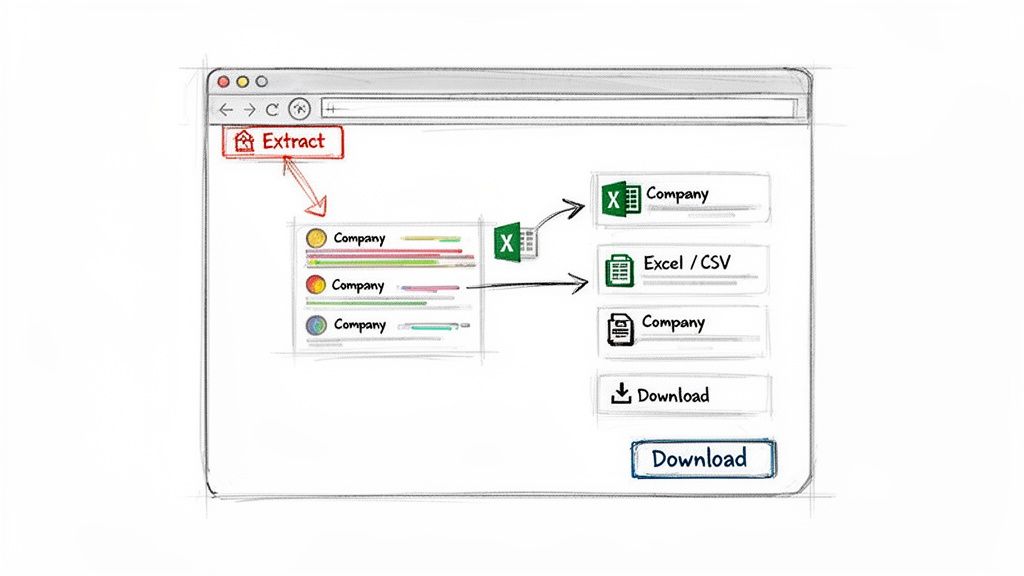
Click the extension's icon, and its AI instantly recognizes the structured data on the page.
Click "Download." That's it. You get a clean, organized CSV file ready for Excel or Google Sheets.
This approach gracefully avoids all the usual headaches. No more jumbled cells from a bad copy-paste and no more technical roadblocks. It just works.
The secret is how these extensions see the web. They don't just read raw HTML; they understand the page's structure like you do, seeing the data as a clean, logical list.
Why Extensions Run Circles Around Other Methods
While every method has its place, browser extensions were built for the modern web. They are designed to overcome the exact challenges that make older tools fail.
They Master Dynamic Content: Many websites load more data as you scroll. Extensions handle this easily, while tools like Excel's Web Query often give up.
They Work Behind Logins: Since the extension lives in your browser, it works with your active login. This means you can easily extract data from private dashboards, social networks, or any password-protected site.
They Handle Pagination Effortlessly: Need to grab a list that spans 10 or 20 pages? The best extensions can automatically click "Next" for you, gathering everything into a single file.
For anyone in sales, marketing, or research, the time savings are incredible. You can build a richer pipeline, monitor competitors, or dive deeper into market trends—all in a fraction of the time. This puts powerful, no-code web scraping into anyone's hands.
Curious how you can plug one of these tools into your workflow? Take a look at our guide on finding the perfect Chrome extension data scraper. It’s the ideal next step to finding a tool that will save you countless hours.
Advanced Scripting for Tech-Savvy Users
For those who aren't afraid of a little code, scripting is where the real power is. If you need to pull data from thousands of pages, handle a bizarrely structured website, or integrate this process into a larger automated system, then writing your own script is your best option.
This is the ultimate "have it your way" method. You get total control to pick the exact data you need, clean it up as you go, and structure the output exactly how you want it before it lands in a spreadsheet. It’s a technical route, but for complex or massive data jobs, nothing beats it.
The Python Approach with Pandas and Beautiful Soup
Python is the favorite of the data science world for a reason. With a couple of great libraries, you can build a custom web scraper that operates with surgical precision. This combination is perfect for anyone looking to convert from HTML to Excel with complete control over the process.
Here’s how it works:
Grab the HTML: Use a library like Requests to pull the raw HTML code from the web page.
Make Sense of the Mess: Next, Beautiful Soup transforms that jumbled HTML into an organized structure you can easily search.
Structure and Export: Finally, the Pandas library takes your extracted data, arranges it into a clean DataFrame (like a spreadsheet in code), and exports it to a perfectly formatted CSV or Excel file.
Using Node.js with Cheerio and Axios
If you prefer JavaScript, the Node.js ecosystem has you covered with an equally powerful set of tools. This stack is fast and a natural fit for web developers.
The process is similar to Python's:
Fetch the Page: Axios is the go-to for making the HTTP request to get the site's HTML.
Navigate the Code: Cheerio acts as your parser. It lets you use familiar selectors to navigate the HTML and pull out the exact information you need.
Convert to CSV: Once you have your data, a library like json2csv can instantly convert it into a clean CSV file, ready for Excel.
The real magic of scripting is its adaptability. You can program your scraper to click through pages, log into websites, pull data from hidden APIs, and even run on a schedule. It’s automation at its finest.
While scripting gives you incredible power, it has a learning curve. You’ll also have to maintain your code when a website changes its layout. For a deeper look, check out our guide on how to scrape the web. It's a great skill to have, but for many projects, a dedicated no-code tool can get you the same results in a fraction of the time.
Best Practices for Clean and Accurate Data
Getting data out of a webpage is just the first step. The real work—and where the value is—is transforming that raw export into a clean, trustworthy dataset. If you skip this, you’re making decisions based on messy, unreliable information.
This is what separates a quick data grab from professional intelligence. Mastering this ensures every time you convert HTML to Excel, you end up with a flawless spreadsheet you can actually use.
Target the Right Information
Before you export, pause for a second. What data do you actually need? Webpages are loaded with fluff—navigation bars, ads, and footers. A smart extraction tool lets you zero in on the specific HTML table or list you want, leaving the extra noise behind.
By focusing your extraction, you save yourself a massive cleanup headache later. Why import 50 columns when you only need five? Be selective from the start.
Handle Common Data Headaches
Web data is rarely perfect. It’s packed with formatting quirks that can ruin your spreadsheet. Knowing what to look for is half the battle.
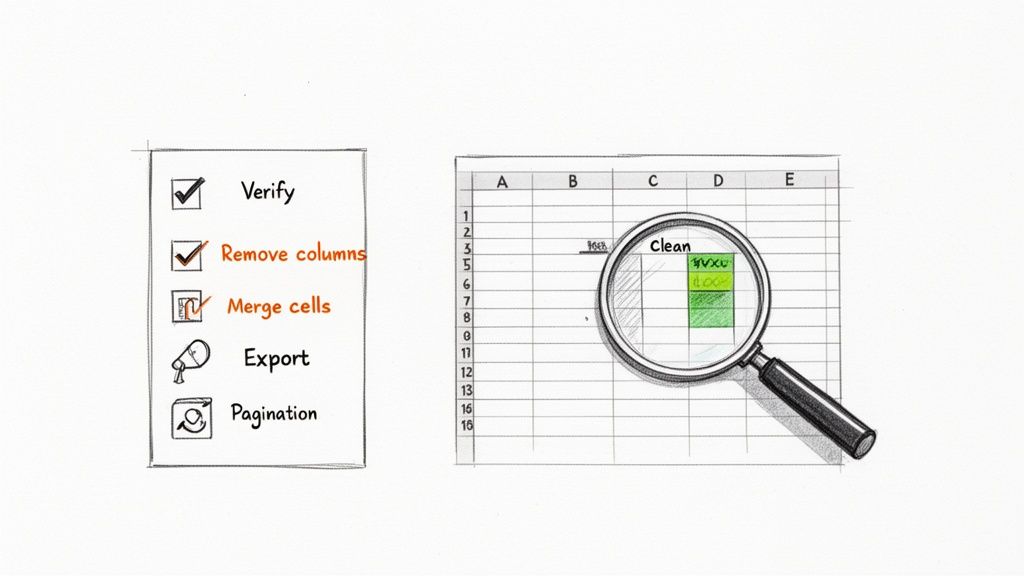
Merged Cells: These are the worst in Excel. They break sorts, filters, and formulas. The best tools will automatically unmerge these during export, creating clean, individual rows.
Special Characters: Pesky symbols like ampersands (&), currency signs ($), or accented letters (é) can cause encoding issues and show up as gibberish. A good converter handles these characters perfectly.
Hidden Columns or Rows: Some HTML tables hide data for styling. Make sure your method is smart enough to pull only the visible, relevant information.
Pagination: The dreaded "Next Page" button. Manually copying data page-by-page is a surefire way to introduce errors. Use an automated tool that can crawl through all pages and pull everything into one file.
Pro Tip: Always do a quick spot-check right after you convert from HTML to Excel. Sort a couple of columns and scan for anything that looks off. This five-minute check can save you hours of pain later.
Validate and Normalize Your Data
Okay, the data is in your spreadsheet. Time for the final polish. This is where you standardize everything to make your dataset consistent. For example, you might reformat all phone numbers to follow a single pattern or ensure every date is in the same MM/DD/YYYY format.
This process, called data normalization, is critical for accurate analysis. If you want to master this final step, check out our deep dive on how to normalize data in Excel.
This thinking applies beyond just HTML. Specialized tools like a Bank Statement Converter to Excel show how valuable it is to get clean, organized data into a spreadsheet. Following these practices ensures your final file isn't just a data dump—it's a reliable asset.
Got More Questions? Let's Talk HTML to Excel
Still have a few questions about pulling web data into a spreadsheet? Perfect! Let's tackle some of the most common ones.
Can I Do This on a Mac?
Absolutely! Every single technique we've covered works beautifully on macOS.
Copy-and-paste is a universal trick, of course. And while the buttons might be in a slightly different spot, Excel for Mac has its own "From Web" feature that works just like the Windows version.
Plus, browser extensions and scripting languages like Python don't care what operating system you're on. You won’t be left out of any of the powerful automation.
How Do I Handle Data That Spans Multiple Pages?
Ah, pagination—the classic web scraping headache. When a table is spread across page 1, 2, 3, and so on, manual methods become a real pain. You’re stuck repeating the same copy-paste process for every page, which invites errors.
Excel's Web Query can sometimes handle simple "Next" buttons, but it often fails on more modern, dynamic websites.
This is where a smart browser extension becomes your best friend. These tools are built to find and click through those "Next" page links for you, automatically gathering all the data into one clean, complete file.
What’s the Best Method for Someone Who Isn't a Coder?
For anyone who doesn't write code, an AI-powered browser extension is the clear winner.
Sure, copy-paste is easy, but it often ends with a jumbled spreadsheet that takes longer to clean up than it did to grab. Excel's "From Web" tool is a step up, but it can feel clunky and gets tripped up by complex sites.
A good browser extension gives you a simple, one-click solution that automates the whole process. It takes zero technical skill and is designed to deliver clean, structured data every time. It’s the fastest way to get perfect results without the frustration.
Ready to stop copying and pasting forever? With Clura, you can scrape clean, structured data from any website in a single click. Explore prebuilt templates and automate your data collection today. Find out more at https://www.clura.ai.
