
Learn how to scrape web data into Excel using four powerful methods. Our guide covers AI tools, Power Query, and more for fast, clean, and actionable data.
Tired of the soul-crushing task of copying and pasting data from websites into spreadsheets? Ditch the manual grind and embrace automation. The best way to scrape web data into Excel is to use modern tools, from Excel’s own built-in features for simple tables to smart AI browser extensions that handle complex sites with a single click.
It’s all about eliminating tedious hours and, more importantly, avoiding the costly human errors that always creep in.
Why Manually Collecting Data Is a Dead End
Let's be honest: moving information from web pages into a spreadsheet isn't just boring—it’s a massive bottleneck. For anyone in sales, marketing, or research, this slow, error-prone process means leaving opportunities on the table because you can't move fast enough. Your decisions are only as good as your data, and manual collection is a huge handicap.
This guide is your way out. We’ll walk through four powerful methods to pull web data directly into Excel, from the tools you already have to advanced AI agents. This is about more than just saving time; it’s about unlocking faster, smarter decisions with clean, structured data exactly when you need it.
You're about to learn how to:
Build dynamic lead lists in minutes, not days.
Monitor competitor pricing in real-time.
Put your research and analysis workflows on autopilot.
Turn hours of drudgery into a simple, one-click process.
The Rush to Automate Data Collection
The move away from manual data entry isn’t a passing trend; it’s a fundamental shift in how modern businesses operate. The web scraping market is exploding, projected to jump from $1.17 billion in 2026 to a staggering $2.28 billion by 2030.
This growth is driven by teams ditching manual data hunts for automated tools that pull information from sites like LinkedIn or Amazon and drop it directly into clean, Excel-ready formats. Automation is no longer optional—it's a competitive advantage.
The bottom line: every minute you spend on manual data entry is a minute you're not spending on strategy, analysis, or closing deals. Automation flips that script, giving you back your most valuable resource—time.
Ultimately, the goal is to make data work for you. By learning how to automate data extraction, you can finally focus on what really matters: turning information into actionable insights.
Choosing the Right Web Scraping Method for You
Not all web scraping tools are created equal. The perfect method boils down to three things: your comfort with tech, the complexity of the website, and how often you need fresh data. Nailing this choice upfront will save you a world of frustration.
We're going to walk through four fantastic ways to pull web data directly into Excel. I'll show you how Excel's own Power Query stacks up against modern, AI-driven browser extensions that can tackle tricky, dynamic websites. We'll even look at other options for more specific situations.
Find Your Ideal Scraping Workflow
The first big question is: manual or automated? Your answer sets the entire course. This handy decision tree maps out the different paths you can take.
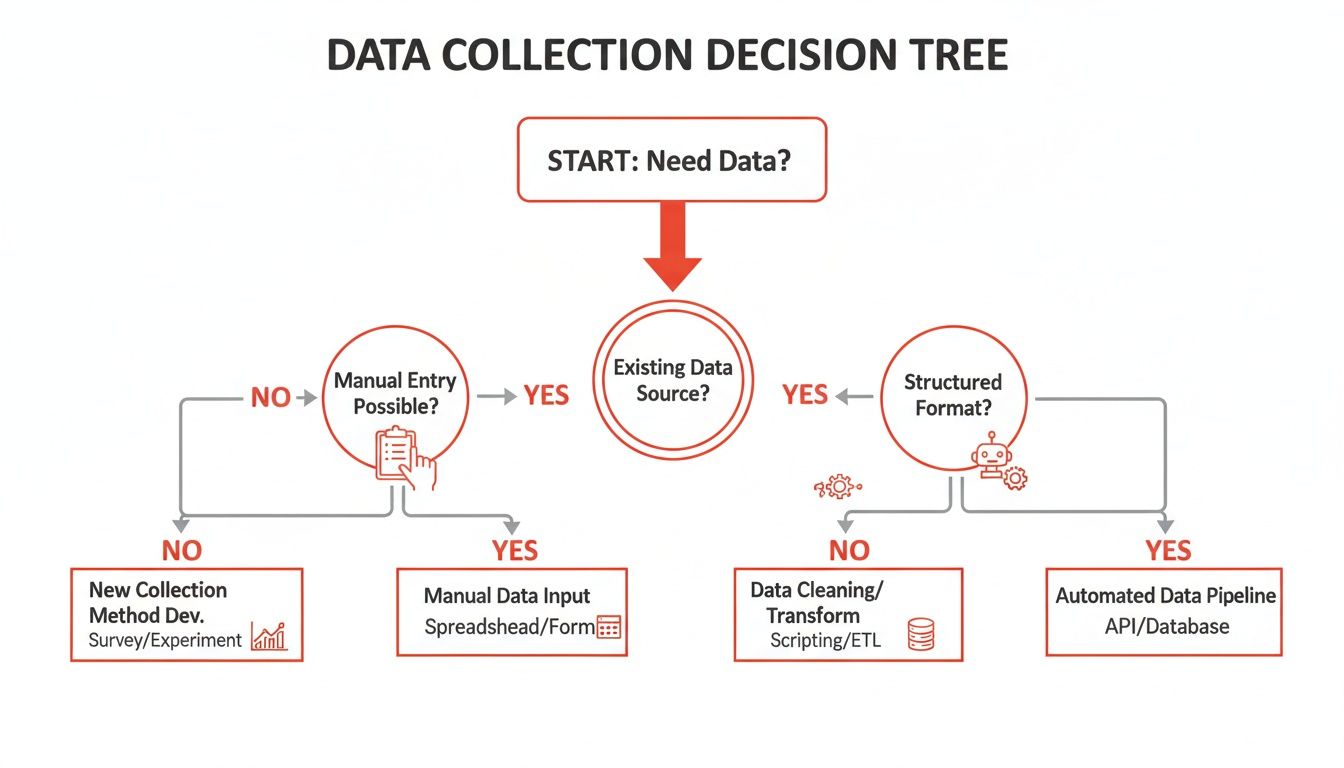
The takeaway is clear. If your data needs are scalable, repeatable, and demand high accuracy, automation is your best friend. Manually copying and pasting is only good for tiny, one-off jobs.
To pick the right tool for your job, think through a few key factors:
Your Technical Skill: Are you a no-code wizard who lives in spreadsheets, or are you ready to dive into Python? Your skills will point you in the right direction.
Website Complexity: Is the data in a clean HTML table, or does it load with JavaScript? Dynamic sites almost always need a more sophisticated tool.
Data Volume and Frequency: Are you grabbing a list once, or do you need to monitor prices every hour? For regular updates, automation is a necessity.
Authentication Needs: Do you need data from behind a login screen? Not every tool can handle that.
As you get started, it’s also smart to get familiar with modern web scraping best practices. This ensures your projects run smoothly and ethically.
Comparing Your Options at a Glance
To make this even easier, let's put the main methods side-by-side. Each has its own strengths and is designed for different tasks and users.
Web Scraping Methods Compared
Here’s a quick overview of the four approaches we'll cover. Think of this as your cheat sheet for picking the right starting point based on your needs.
Method | Best For | Ease of Use | Handles Dynamic Sites? | Cost |
|---|---|---|---|---|
AI Browser Extension | Quick, no-code data extraction from any site | ★★★★★ (Very Easy) | Yes | Freemium/Paid |
Excel Power Query | Pulling data from simple, static tables into Excel | ★★★★☆ (Easy) | No | Included with Excel |
Google Sheets Functions | Lightweight, one-off scrapes of public data | ★★★☆☆ (Moderate) | No | Free |
Python Scripting | Complex, large-scale, and custom scraping projects | ★☆☆☆☆ (Hard) | Yes | Free (open-source) |
The best tool is the one that gets you the data you need with the least friction.
If you want an even deeper dive, check out our complete guide to the best website data extraction tools available today.
The best tool is the one that gets you the data you need with the least amount of friction. For most business users, that means a no-code, browser-based solution that works right out of the box.
Here are the four main paths we're about to explore:
AI Browser Extensions: The fastest, most user-friendly route. Perfect for anyone who wants to point, click, and export clean data without writing any code.
Excel Power Query: A powerful tool already built into Excel, brilliant for grabbing data from websites with clean, simple HTML tables.
Google Sheets Functions: A fantastic, cloud-based alternative for quick scrapes of public tables using simple formulas like
IMPORTHTML.Python Scripting: The powerhouse option. It offers total control for massive or complex projects but requires coding skills.
Method 1: Use an AI Agent for One-Click Scraping
For the absolute fastest and most flexible way to get web data into Excel, nothing beats an AI-powered browser extension. This is the ultimate "no-code" solution. It flattens the learning curve and automatically handles the tricky parts of data extraction, especially on modern, JavaScript-heavy websites that trip up older tools.
A smart AI agent can navigate logins, click through multiple pages, and pinpoint the exact information you need without a fuss. Just activate it on the page and watch it go to work.
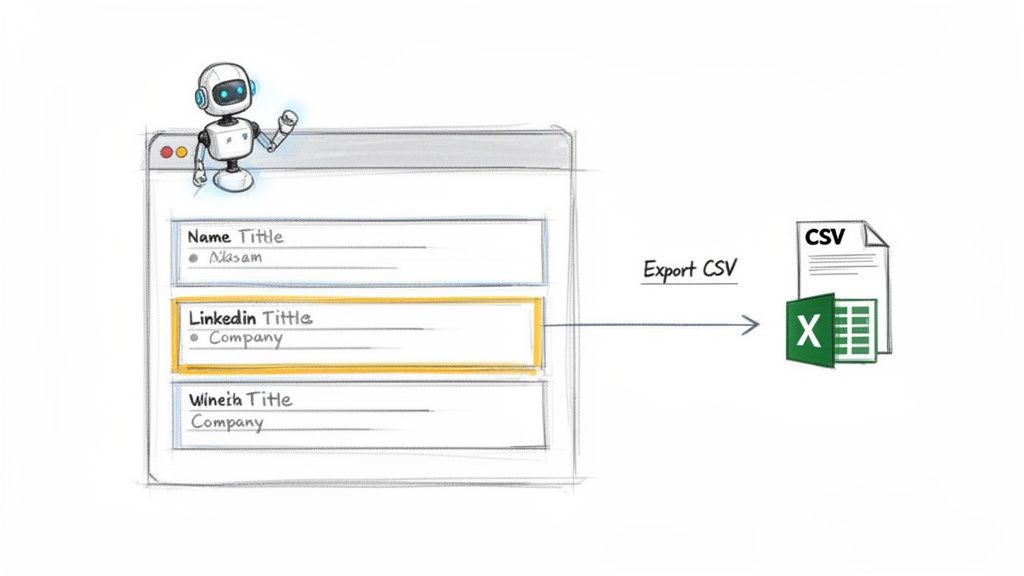
This approach is a lifesaver for sales, marketing, and recruiting pros who need reliable data now, without touching code. You get clean, structured results exported directly to a CSV, ready for Excel or your CRM in seconds.
How It Works: A Real-World Scenario
Let's see this in action. Imagine you're a sales rep building a targeted lead list of marketing managers at SaaS companies in California. Doing this manually from LinkedIn Sales Navigator would take days.
With an AI browser agent, the process is a breeze:
Install the Extension: Add a tool like Clura to your Chrome browser. It’s a quick, one-time setup.
Run Your Search: Head to LinkedIn Sales Navigator and search for "Marketing Manager" with the right industry and location filters.
Activate the AI Agent: Once your search results appear, click the extension's icon. The AI instantly scans the page, recognizing key data like names, job titles, companies, and profile URLs.
Export to CSV: The agent grabs all the data, even from multiple pages, and organizes it. Hit "Export to CSV," and the file downloads immediately, ready for Excel.
What used to be a full day's work is now done in less than a minute. These tools can even handle pagination automatically, consolidating results from page after page into one clean file.
The real magic of an AI agent is its ability to adapt. It understands a webpage's structure like a human, meaning it can pull data from almost any source—job boards, e-commerce sites, social media—without any configuration.
The Rise of AI in Data Scraping
This shift toward AI-driven tools is a massive industry movement. The AI-powered web scraping market is projected to skyrocket from $7.79 billion in 2025 to an incredible $47.15 billion by 2035. This explosion is driven by businesses that need real-time data to make smarter decisions in sales, recruiting, and competitive analysis.
To see what's possible when you pair AI with data, explore broader guides on how to use AI in marketing to streamline your entire workflow.
Method 2: Use Excel’s Built-In Power Query
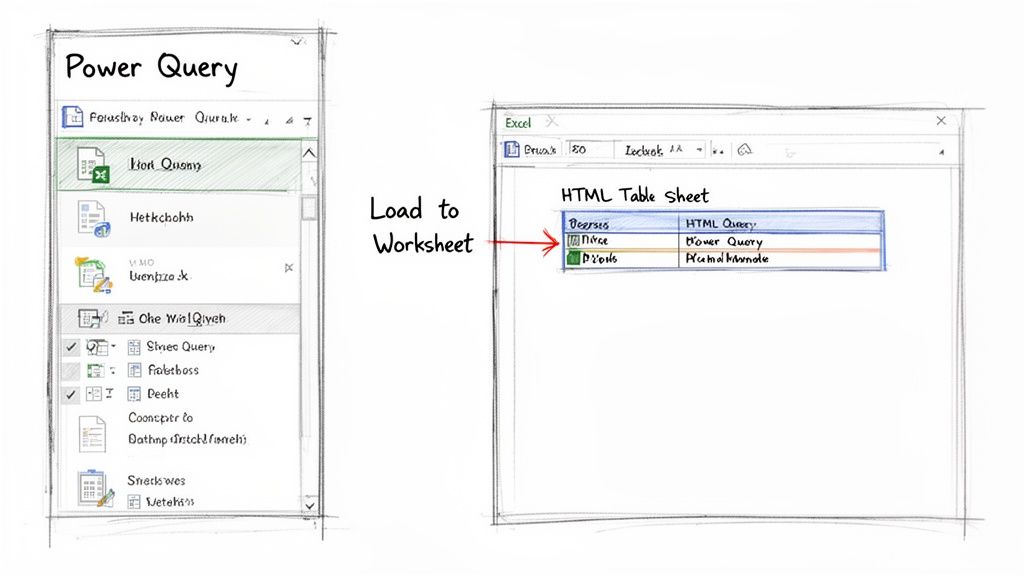
Sometimes, the best tool is one you already have. Tucked inside modern versions of Excel is a data-gathering powerhouse called Power Query. You'll find it under the Get & Transform Data section on the Data tab, and it's a game-changer.
Think of it as Excel’s secret weapon for pulling data directly from the web. You can point it at a URL, and it will intelligently find any structured tables on the page, letting you pull them straight into your worksheet. If you're dealing with clean, static HTML tables, this is your perfect starting point.
Connecting to a Web Page with Power Query
Getting this set up is surprisingly easy. Let's run through a quick example: grabbing a list of the world's tallest buildings from a Wikipedia page.
Here’s how you do it:
Open a new Excel workbook and go to the Data tab.
In the "Get & Transform Data" group, click From Web.
A dialog box will appear. Paste the URL of the webpage and click OK.
Excel will analyze the page. The Navigator window will open, showing a list of all HTML tables it found. Click each one to preview it.
Once you find the right table, select it and click Load. The web data will instantly appear in a new worksheet.
Cleaning Your Data in the Power Query Editor
But what if the data is messy? This is where Power Query shines. Instead of clicking "Load," choose Transform Data. This launches the Power Query Editor, an intuitive interface for cleaning your data before it hits your spreadsheet.
You can perform all sorts of data-cleaning tasks without writing a single formula:
Remove unwanted columns: Right-click a column header and select "Remove."
Split columns: Easily break up a column like "City, Country" into two separate columns.
Filter out noise: Use the filter arrows, just like in a regular spreadsheet, to remove rows you don't need.
Fix data types: Ensure numbers are formatted as numbers and dates as dates.
The best part? Every transformation is recorded. The next time you need to update your data, just hit "Refresh." Power Query will automatically repeat all your cleaning steps on the fresh data, saving you tons of time.
Power Query is a beast for structured, predictable websites. Its big limitation is that it can't handle dynamic content loaded by JavaScript or sites that require a login. For those jobs, an AI-powered browser extension is a much better fit.
Even with its limitations, getting comfortable with Power Query is a valuable skill. It's a robust, built-in solution that can automate a surprising amount of your data collection work.
Alternative Methods for Specific Scraping Needs
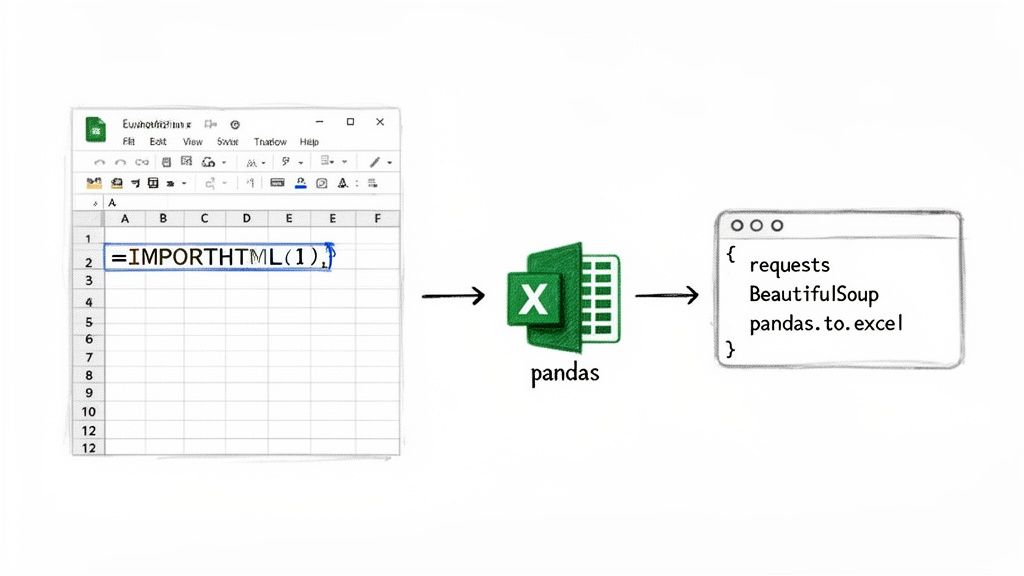
While browser extensions and Power Query are incredible, sometimes you need a different approach. Let's look at two fantastic alternatives: one that's refreshingly simple and another for those who crave absolute power.
First up is a handy tool you probably already use: Google Sheets. It’s not just for budgets; it’s a nimble web scraper in disguise.
Method 3: Scrape Directly with Google Sheets
For quick, one-off data grabs from a simple webpage, Google Sheets is a secret weapon. You can use built-in functions to pull data directly into a spreadsheet, which you can then download as an Excel file.
The magic happens with these two formulas:
=IMPORTHTML("URL", "table", index): Your go-to for pulling data from a clean HTML table. Just provide the URL, specify "table," and tell it which table on the page to grab (1 for the first, 2 for the second, and so on).=IMPORTXML("URL", "XPath query"): This is more advanced but offers surgical precision. It lets you pinpoint specific information using an XPath query, which is like a map to an exact element on the page.
This method is amazing for grabbing sports scores, public statistics, or any straightforward data table. Once your data is in Google Sheets, just go to File > Download > Microsoft Excel (.xlsx).
Method 4: Use Python for Ultimate Control
For those who aren't afraid of code and need a solution with no limits, Python is the undisputed king of web scraping. It has a steeper learning curve, but the payoff is total, unrestricted power.
With a few lines of code, you can build a custom script to scrape web data into Excel from even the most complicated, dynamic websites. This path gives you complete control over navigating logins, handling bizarre layouts, and cleaning messy data on the fly.
Python is what you turn to when you need to automate massive, recurring scraping jobs or when off-the-shelf tools fail. It’s the ultimate solution for data pros who want it done exactly their way.
The demand for clean, structured data is only growing. The web scraping software market was valued at $782.5 million in 2025 and is projected to rocket to $2.7 billion by 2035. This surge is driven by businesses needing automated ways to monitor competitors and find new leads. You can dive deeper into the web scraping market growth to see why these skills are becoming so valuable.
Got Questions About Scraping Data into Excel?
Jumping into web scraping feels like unlocking a superpower, but it's normal to have questions. You might be wondering about navigating tricky websites or staying on the right side of the rules.
Let's tackle some of the most common hurdles people face when they start pulling web data into Excel.
Is It Legal to Scrape Data from Any Website?
This is the big one. The short answer: it's complicated. While web scraping itself isn't illegal, the details matter. What you scrape, how you do it, and what you use the data for all play a huge role.
To keep your scraping ethical and avoid legal trouble, follow these common-sense guidelines:
Read the
robots.txtFile: Most websites have a public file (e.g.,website.com/robots.txt) that outlines the rules for bots. Follow them.Avoid Personal Data: Scraping personally identifiable information (PII) without permission is a huge no-go and can cause issues with privacy laws like GDPR and CCPA. Stick to public, non-sensitive business data.
Don't Hammer the Server: A good scraper is a gentle one. Firing off too many requests in a short time can slow down a website. Be a good internet citizen and space out your requests.
Respect Copyrights: Never scrape copyrighted content like articles or photos and pass it off as your own.
The golden rule: If you're grabbing public data for internal analysis and not harming the website's performance, you're almost always in the clear.
How Do I Scrape Data from Behind a Login Screen?
The classic login wall is a common roadblock. Simple tools like Power Query or Google Sheets functions can’t log in for you because they can't handle an authenticated session. But you still have options.
The easiest way to handle this is with a modern, AI-powered browser extension. Since these tools run inside your browser, they use your existing session. If you're already logged in, the tool is too. This makes it a breeze to scrape data from private dashboards, LinkedIn, or any other password-protected site.
Coders can write a Python script using a library like Selenium to automate logins, but that requires serious technical skill. For most people, a good browser-based tool is the way to go.
What’s the Best Way to Handle Data Across Multiple Pages?
Nobody wants to manually click the "Next" button 500 times. This process is called pagination, and thankfully, modern scraping tools are designed to solve this problem.
AI-powered agents excel here. They are smart enough to spot the "Next Page" button or understand the site's structure, allowing them to automatically cycle through every page. They keep going, collecting all the data and merging it into one clean file for you. Just set it and forget it.
Ready to stop copy-pasting and let automation take over? Clura is a browser-based AI agent that helps you scrape, organize, and export clean data from any website in one click. Explore prebuilt templates and try it for free today.
