
Learn how scraping website data into Excel transforms your workflow. This guide covers no-code tools, Power Query, and Python for any skill level.
Tired of manually copying and pasting information from websites into spreadsheets? There's a much smarter way. Scraping website data into Excel lets you automatically pull information from any site and drop it directly into a clean, organized spreadsheet. Using simple tools like one-click browser extensions or Excel's built-in features, you can turn messy web pages into ready-to-use data in minutes.
Why Scraping Data Into Excel is a Game-Changer
Remember the last time you built a list of sales leads from an online directory? The endless cycle of copy, switch windows, paste, and repeat is a massive time-sink. Now, imagine grabbing that entire list—names, titles, and companies—and having it perfectly formatted in a spreadsheet in under five minutes. That's the power of web scraping.
It transforms the internet from a simple source of information into your own personal database. Scraping data directly into Excel frees you from mind-numbing manual tasks, giving you instant access to the information you need to make smarter, faster decisions.
This isn't just a niche tech trick; it's a huge business advantage. The web scraping market was valued at an incredible USD 754.17 million in 2024 and is projected to hit USD 2,870.33 million by 2034. That explosive growth tells you one thing: businesses everywhere are realizing how essential this skill is.
What Can You Actually Do With It?
Once you master this, you can automate powerful tasks and gain a real edge. For example, you could export LinkedIn contacts directly into Excel to build a hyper-targeted list for your next outreach campaign.
But it doesn't stop there. Here are a few other powerful use cases:
Build Killer Lead Lists: Effortlessly pull contact info from online directories, professional networks, and company "About Us" pages.
Monitor Competitor Pricing: Keep a constant eye on price changes on sites like Amazon or Shopify to ensure your pricing stays competitive.
Dominate Market Research: Gather customer reviews, product specs, and industry news from dozens of sources into one clean dashboard.
Track Job Postings: Scrape job boards to analyze hiring trends in your industry or find your next big career move.
The process is surprisingly straightforward: you target a website, extract the data you need, and organize it in Excel.
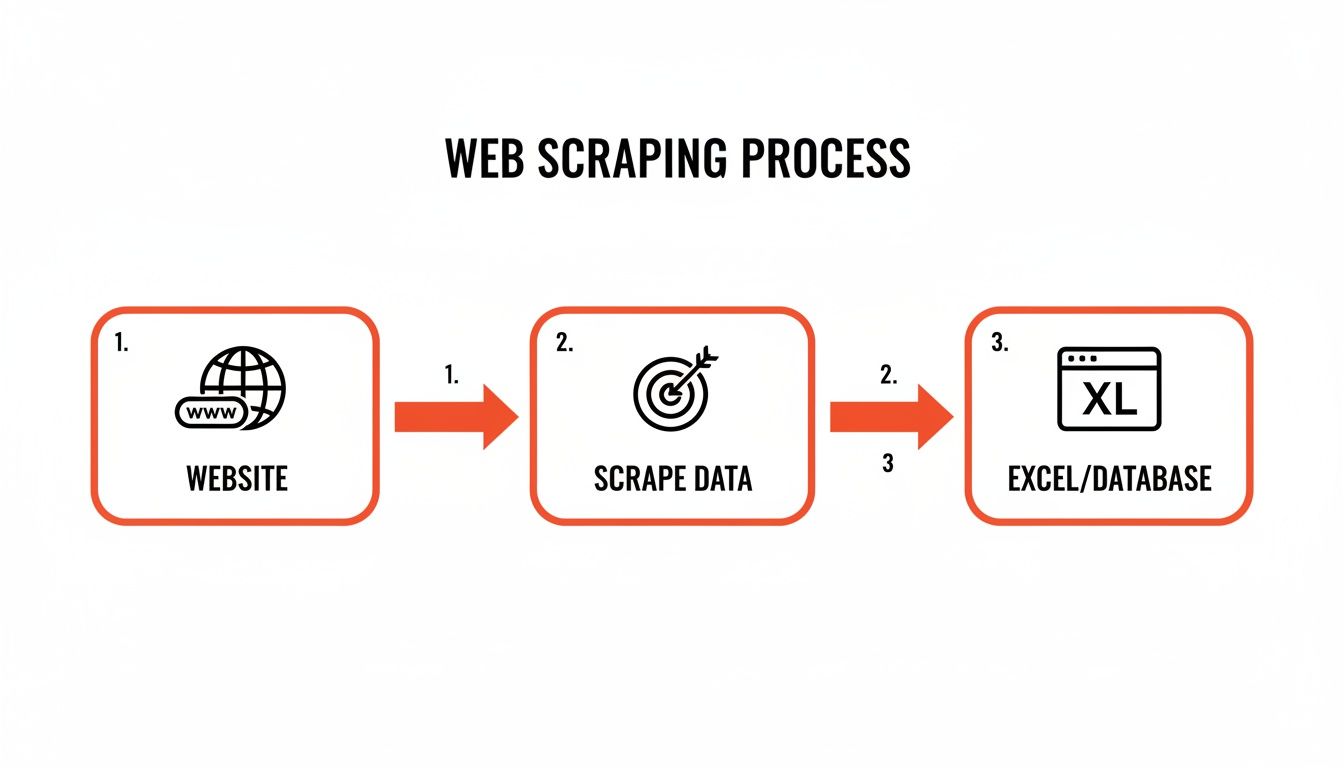
As you can see, it’s a simple flow from the web to your spreadsheet, turning chaos into clarity.
Choose Your Scraping Method
Not sure where to begin? Don't worry. The right tool depends on your goal and comfort level with tech. Here’s a quick breakdown to help you pick the perfect method for your project.
Method | Best For | Technical Skill | Speed |
|---|---|---|---|
Browser Extensions | E-commerce, social media, simple directories | Very Low | Very Fast |
Excel Power Query | Static tables, financial data, product lists | Low | Fast |
Python Scripts | Complex sites, large-scale jobs, automation | High | Blazing Fast |
Each approach has its strengths. Browser extensions are a dream for quick, one-off jobs. Power Query is fantastic for structured data already in tables. And Python is the undisputed king for anything complex or repetitive.
Method 1: Effortless Scraping with a Browser Extension
Ready to pull data from any website straight into Excel without writing a single line of code? A browser extension is your secret weapon. These tools install directly into Chrome and act as a smart assistant, doing all the heavy lifting for you.
Forget a steep learning curve. The magic of a one-click scraper is its simplicity. You just navigate to the page you need—a LinkedIn search for new sales leads or a competitor's product list on Amazon—click the extension's icon, and it gets to work.
The best tools automatically detect and structure the data on the page, organizing it into a clean table right before your eyes. This is, hands down, the fastest way to get from raw web content to a usable spreadsheet.
From Website to CSV in Seconds
Modern extensions are incredibly intelligent, often packed with pre-built recipes for common websites, making the process even faster.
Here’s a glimpse of how a smart browser extension makes data collection a breeze.
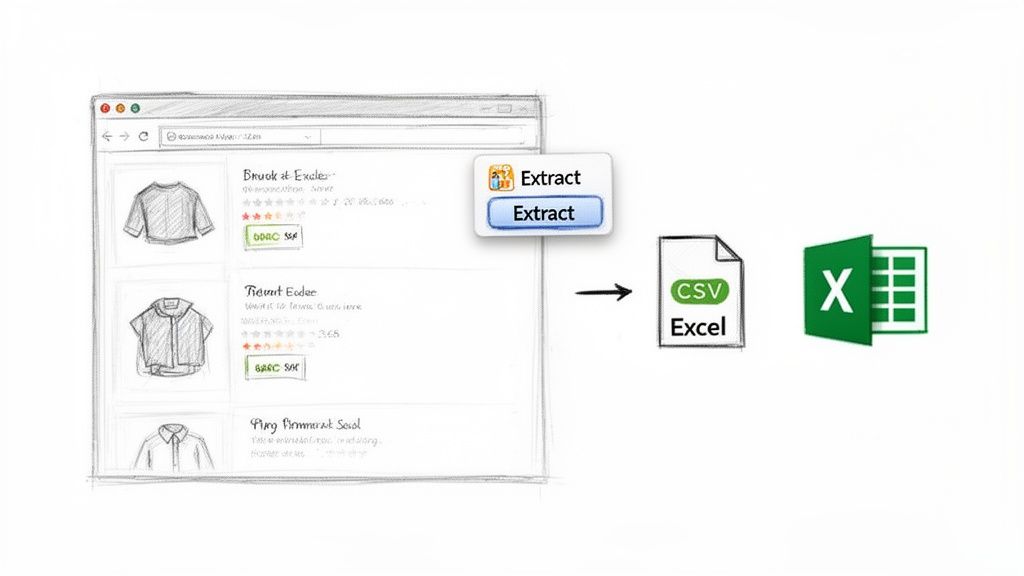
This is what it looks like in action: a simple interface turning a busy webpage into structured data with just a click. No fuss, no drama.
These tools are built for real-world business tasks. Whether you're hunting for leads, monitoring the market, or sourcing talent, you can grab exactly what you need without waiting on a developer.
Lead Generation: Instantly pull names, job titles, and company info from professional networks.
Price Monitoring: Easily track product prices across e-commerce sites to stay competitive.
Recruiting: Compile candidate profiles and skillsets from job boards in a fraction of the time.
The true power of a browser scraper is speed. It closes the gap between finding data and acting on it, letting you jump on new opportunities the moment they appear.
The One-Click Workflow
The process is designed to feel completely natural. Once you've installed the extension, it's just a few clicks.
Navigate to the website you want data from.
Click the extension's icon in your browser's toolbar to activate it.
The tool scans the page, identifies repeatable data patterns, and shows you a live preview.
Hit "Export," and you get a clean CSV file ready for Excel or Google Sheets.
This simple workflow saves hours of manual copy-pasting, freeing you up to focus on analysis. To learn more, check out this guide on finding the best data scraping Chrome extension for your needs.
Method 2: Use Excel's Built-in Power Query Tool
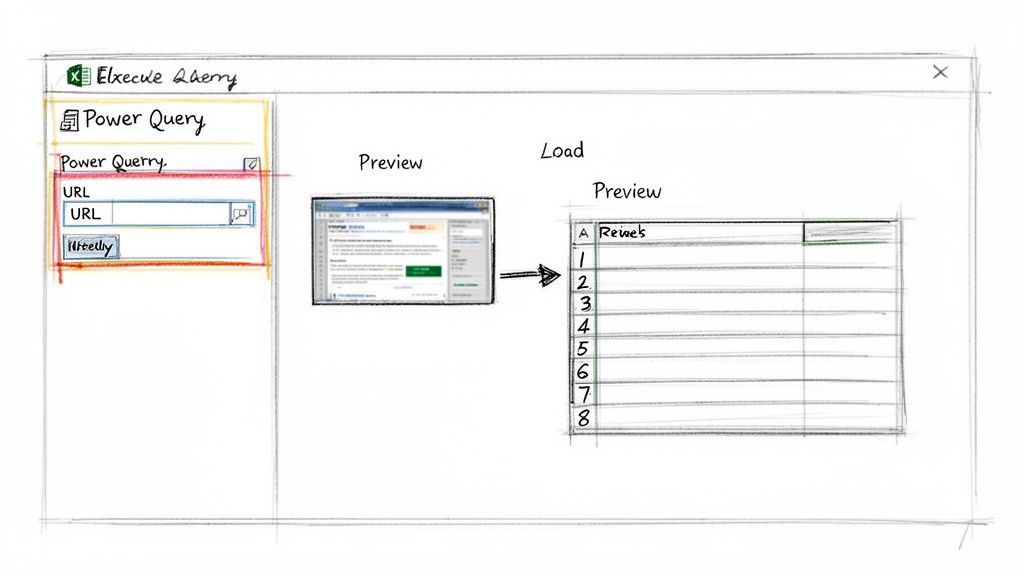
Did you know Excel has a powerhouse tool for pulling data from websites hiding in plain sight? It's called Power Query (found under the "Get & Transform Data" section on the Data tab), and it’s a game-changer for grabbing structured information straight from a URL.
This method is brilliant for data that’s already laid out in clean tables—think financial stock prices, e-commerce product lists, or sports stats. Power Query creates a live, refreshable link to the source, so your spreadsheet can stay current automatically.
It’s perfect for building dashboards that track key metrics without you having to lift a finger after the initial setup.
How to Connect Excel Directly to a Website
Getting started with Power Query is easier than you might think. You just need the URL of the page you want to scrape.
Here’s how to do it, step-by-step:
Start the Process: In Excel, go to the Data tab and click From Web.
Enter the URL: A small box will pop up. Paste the webpage's URL into it and click OK.
Select Your Data: Excel scans the page and shows you every HTML table it found. The "Navigator" pane lets you click each one to see a preview.
Load the Data: Once you find the right table, click Load to drop it directly into your worksheet. For more control, click Transform Data to clean it up first.
That's it! In just a few clicks, you have a perfectly structured table from the web, sitting right in your spreadsheet and ready for analysis.
The best part about Power Query is its "set it and forget it" nature. Once the connection is established, you can refresh the data with a single click or schedule it to update automatically.
Clean and Automate Your Data Pulls
The real magic happens in the Power Query Editor. This is where you can tidy up the data before it even lands in your spreadsheet. It’s a completely visual interface where you can remove columns, filter out irrelevant rows, and fix data types—all without writing a single formula.
Every change you make is recorded. This means the next time you refresh your data, Power Query replays all your cleaning steps automatically. You get a perfectly formatted dataset, every single time.
Filter Out Noise: Want to see products from just one brand? Apply a filter.
Remove Extra Columns: Get rid of promotional fluff or empty columns.
Format for Analysis: Convert numbers and dates stuck as text into their proper formats.
This built-in feature transforms Excel into a seriously robust tool for web scraping. To really level up your skills after scraping, you should master data parsing in Excel.
Method 3: A Gentle Introduction to Python Scraping
When you need absolute control, want to scrape thousands of pages, or need to tackle a complex website, Python is your best friend.
Don't let the thought of "coding" intimidate you. The idea is to use a few simple commands to build a custom data-grabbing machine. This approach lets you slice through almost any website structure and pull out exactly the data you need.
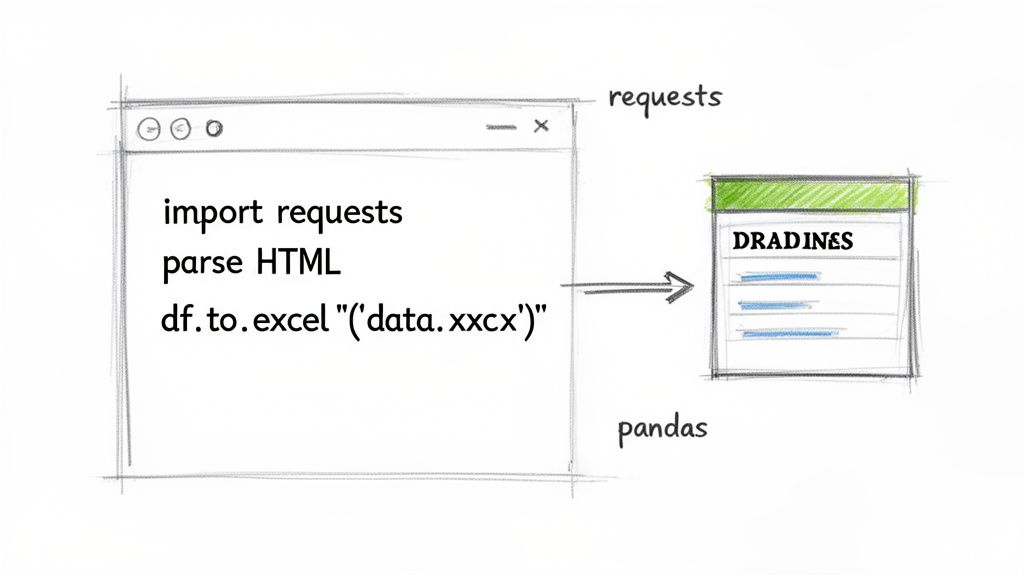
Python is perfect for websites with unusual layouts or those that require special "request headers" to show you the data.
Your First Python Scraping Script
To get started, we'll use two popular Python libraries: requests and pandas.
Think of it this way: requests fetches the raw HTML from a webpage. Then, pandas organizes that messy data into a clean, perfect table—like a supercharged version of Excel.
Here’s a simple script to see it in action. Let's imagine we want to grab all the headlines from a news website.
With just a few lines of code, you've automated a task that would have taken ages manually. The results are undeniable. Companies that embrace automation often report saving 30-40% of the time spent on data collection while hitting accuracy rates as high as 99.5%. If you're curious about where this is all headed, you can explore the latest AI scraping research.
The real beauty of using Python is scalability. Once you've written a script for one page, you can easily adapt it to run on hundreds or even thousands of similar pages.
This is just scratching the surface, but it shows how a little code can unlock a tremendous amount of data and completely transform your workflow.
How to Overcome Common Scraping Hurdles
Pulling data from a website into Excel isn't always a smooth ride. You will hit roadblocks. But don't sweat it—every common challenge has a practical solution.
One of the biggest hurdles is dynamic content. This is when a website uses JavaScript to load its data after your browser loads the page. If your scraper returns empty cells from a page that is clearly full of information, this is almost certainly why. Your tool grabbed the initial HTML skeleton before the good stuff was even there.
This is where AI-powered browser extensions shine. They are built to mimic human behavior, waiting for all the content to appear before they start scraping.
Of course, getting the data is only part of the equation. We also need to be good digital citizens. This means respecting a website's robots.txt file (their official rules for bots) and not hitting their server with too many requests at once. To dive deeper, check out this guide on the legality of web scraping.
Taming Dynamic Websites
When your go-to scraping method fails, it's a sign the website is more complex under the hood. Think of e-commerce product listings, endlessly scrolling social media feeds, or real-time job boards.
The Symptom: Your scraper returns blank fields or misses entire chunks of data.
The Cause: The data is loaded dynamically with JavaScript.
The Solution: Use a smarter tool. A browser extension built for modern websites can interact with the page, click buttons, and wait for content to load—just like a person would.
Think of it this way: A basic scraper takes a quick snapshot the instant a page loads. A smart scraper waits for the scene to be fully set before taking the perfect picture.
The Final Polish: How to Clean Your Data in Excel
You've got the data! Now for the final, crucial step: making it usable. Raw data is almost always a bit messy, but Excel is packed with features to help you whip it into shape.
First, remove any duplicate rows that may have snuck in. Next, use Excel's "Text to Columns" feature—it's perfect for splitting a full name into separate "First Name" and "Last Name" columns. Finally, use "Find and Replace" to clean up inconsistencies, like changing all instances of "USA" and "United States" to a single, standard format.
This cleanup phase turns a chaotic data dump into a valuable, reliable asset. It’s no wonder the web scraping software market hit USD 1.01 billion in 2024. The demand for clean, structured data is exploding. You can discover more insights about these web scraping trends to see just how much of a competitive edge this skill gives you.
Automating and Scaling Your Data Workflows
Grabbing data once is useful, but the real magic happens when you put the process on autopilot. An automated workflow transforms a manual chore into a steady stream of fresh insights, feeding you the latest info without you having to lift a finger.
This is where you gain a serious competitive advantage. Imagine a system that automatically checks competitor prices every morning or pulls the latest industry job postings every Monday. Instead of getting bogged down in repetitive data collection, you can focus your energy on analysis and strategy.
Build a Repeatable Data Engine
Whether you use a browser extension, Power Query, or a Python script, the goal is to create a "set it and forget it" system. You want to turn your manual process into a scheduled, repeatable engine that keeps your spreadsheets perpetually up-to-date.
For browser extensions like Clura, this is as simple as re-running saved recipes on a recurring basis. A few clicks each week is all it takes to keep your market intelligence current.
If you’re a Power Query fan, the scheduling feature is your best friend.
Set Automatic Refreshes: You can tell Excel to update its data connections every time you open the file or at specific intervals.
Create Live Dashboards: This ensures your charts, pivot tables, and reports are always showing the most current information available, with no manual updates required.
The objective is to build a workflow that hums along in the background, reliably scraping website data into Excel so you can trust your reports are always based on the latest facts.
From Manual Pulls to Automated Feeds
For those who’ve ventured into Python, automation is built right in. You can use tools like Windows Task Scheduler or cron jobs on Mac and Linux to execute your scripts on a daily or weekly schedule. This is perfect for demanding tasks like archiving historical data or monitoring sites that change constantly.
By setting up these automated systems, you shift from being an active hunter of information to a passive recipient. This frees up an incredible amount of time, letting you stay focused on high-impact analysis and decision-making.
Try this workflow today.
Frequently Asked Questions
Jumping into web scraping can bring up a lot of questions. Here are answers to some of the most common ones.
Is It Legal to Scrape a Website?
This is a common concern. Scraping publicly available data is generally okay. Think product prices, article headlines, or business addresses. The trouble starts when you cross certain lines. Always check a site's Terms of Service and its robots.txt file (usually at website.com/robots.txt) to see what they allow.
As a golden rule, steer clear of scraping:
Any kind of personal data or information behind a login.
Copyrighted material like full articles or unique images.
Anything that could violate privacy laws like GDPR or CCPA.
Bottom line: scrape responsibly and ethically, and you'll be fine.
What's the Best Way to Handle Dynamic Sites Like LinkedIn?
When dealing with modern, interactive sites—like LinkedIn, job boards, or slick e-commerce stores—standard tools often fail. That’s because the important data is loaded with JavaScript after the initial page load.
For these sites, a specialized browser extension is your best friend. Tools like Clura are designed to handle this dynamic content. They interact with the page just like a person would, waiting for all the data to appear on the screen before grabbing it. This way, you get the complete picture.
Why Did My Power Query Connection Suddenly Break?
This is a classic issue. You set up a perfect query, and a week later, it's throwing errors. 99% of the time, this happens because the website you're pulling from changed its underlying structure. The HTML table you pointed Power Query to might have a new name, or the page layout was redesigned.
The Fix: Open the Power Query editor and look at the "Applied Steps" panel. Click through your steps one by one. You'll quickly find the exact step where the error occurs. From there, you can usually edit that step—often the "Source" or "Navigation"—to re-select the correct data table.
Ready to ditch the soul-crushing copy-paste routine for good? Clura is a simple browser extension that turns any website into a clean spreadsheet with just one click. Explore pre-built scraping recipes and start pulling data for free today.
